Showing posts with label youtube. Show all posts

Monday, 5 December 2016

Digital Bytes - Dec 5th, 2016


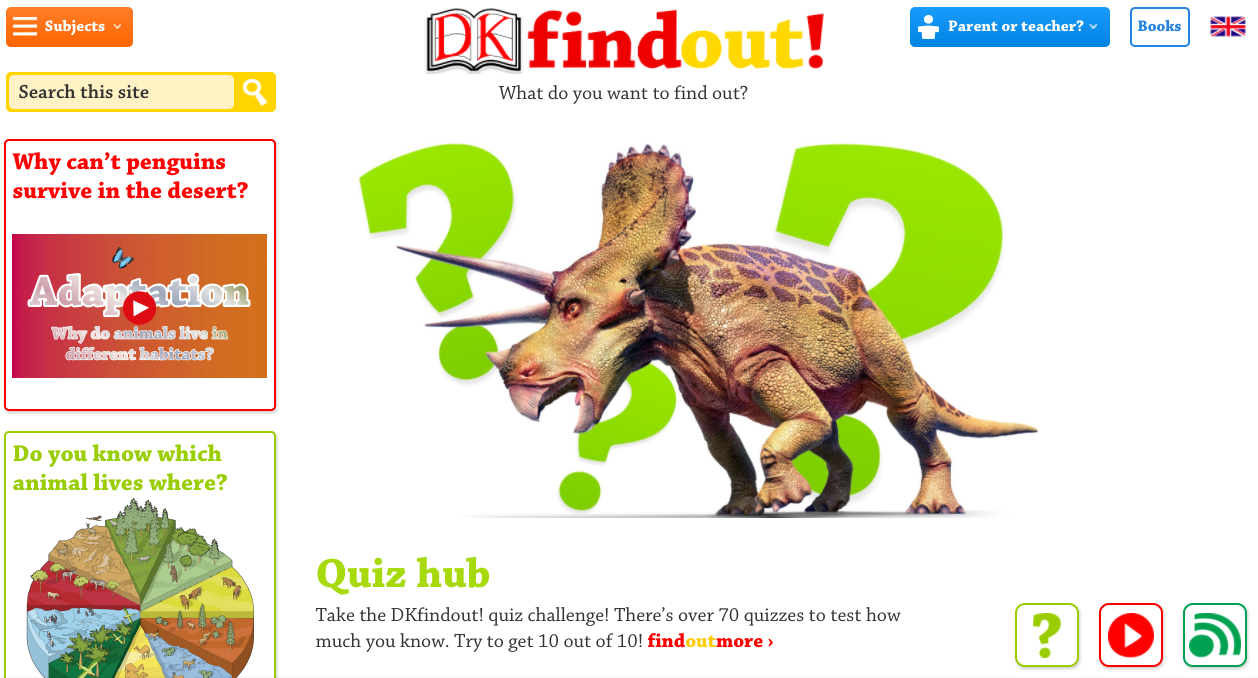
DK Find Out

DK Find Out is a fantastic site for kids to look for age-appropriate information. There are articles, diagrams, videos, fun facts and quizzes.
Like the DK books, the website is visually rich and students can use a combination of text, images and video to learn more.
How Should Reading be Taught in a Digital Era?

Writer Liana Heiton states that the nature of reading has changed significantly in the past decade, however questions whether teaching practices have developed alongside. In the article How Should Reading be Taught in a Digital Era, she explores different online reading options and finishes with a quote from Katherine Hale: "But reading isn't just reading print text anymore. Reading is reading the world."
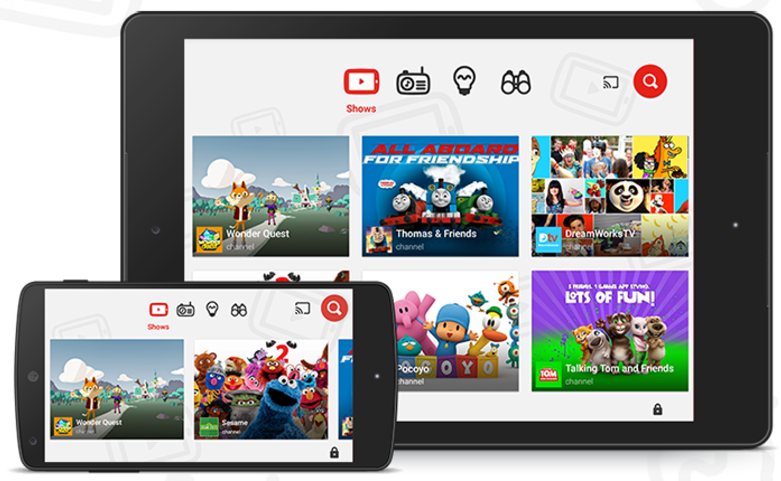
YouTube Kids

Learning something new often involves watching a video these days and our go to video site is YouTube.
YouTube kids is a free app which allows kids to search and find videos and not have to worry about advertising or inappropriate content/links.

Friday, 6 May 2016

Leaving Well with Google - updated!

[Editor note: We have updated this very important post from our previous 2013 version! The information below is current as of 6 May 2016.]

This is always a difficult time of year as we say "see ya later" to colleagues, students and families who are leaving our school. To make the transition a little easier, here are some ideas on taking your Google items with you.

The first step to make the transition is to create a personal Google account for yourself. This will become the new home for all the things you'd like to transfer from your account at UWCSEA.

To take things with you, we will use Google Takeout, but first it's important to separate the things you want to leave behind from the things you want to take with you.

Google Drive

If you have any items you need to leave behind because they are needed by colleagues or friends, you'll need to make sure that your department account is added as an editor of the document. An easy way to do this is to create a new folder and add the department account as editor to the folder. Then, Add (hold down Option+drag) documents to this folder. They will automatically be editable by the department account.


For really important documents, you might consider transferring ownership over to the department account.

You'll also need to think about those files that you will want to take with you when you leave. One systematic way to do this is to create a separate folder in your My Drive where you collect these files (e.g. "Take Out" folder). As you go through documents in other parts of your Drive, add them to this "Take Out" folder -- be sure you add and not move by holding down the Option key when you drag to your new folder.

Cleaning your digital debris can be a daunting task, but it's necessary to make sure documents are left with those who depend on them, and that you have the documents you need when you depart.


Gmail

Just like with Drive, you should take this opportunity to sort through your email. If there are emails that people in your department or team need that they have not been cc'd on, please take some time to filter these and forward them to the relevant people.

Similar to how you organized your Drive, in GMail you can create a label for all the email you intend to take with you. When you go to use Google Takeout later, you can then choose if you want to bundle all of your email into that archive, or if you'd just like to take email with a particular label.


Sites

Before you leave, it's important to make sure that the Google Sites you've created for UWCSEA that need to remain behind -- e.g. event sites, curriculum pages, etc. -- have ownership changed to your department account. 

1. Go to the site you wish to transfer and click the Settings icon, then choose "Manage Site."
2. Click "Sharing and Permissions" and add the department account an "owner" of the site (you can have multiple owners of a site). Click "OK."


You may want to preserve some of the Google Sites you've created in the college and keep copies for yourself later. To do this, the steps are similar: 

1. Go to the site you wish to transfer and click the Settings icon, then choose "Manage Site."
2. Click on "Sharing and Permissions" and make your personal Google account an "owner" of the site.
3. Log in to your personal Google account and go to the address of the site you're transferring. Again, go to "Manage Site" and from the "General" section, press the "Copy this Site" button. 

This will make a copy of your UWCSEA site in your personal Google account space. 

WARNING: linked or embedded assets like YouTube videos, Google Drive content, or images may be broken and need to be re-linked, embedded or uploaded.


GMail, Blogger, Photos, YouTube, Google Drive, and more
Content from a variety of Google services can be transferred using Google Takeout. This utility allows you to select what services you'd like to take data from and bundles them into open and portable formats that you can then transfer to your personal Google account. 

For example, Takeout lets you download the original video from things you've uploaded to YouTube.
Takeout allows you to specify folders you'd like to export from your Google Drive (you don't have to take the whole thing). Note that you cannot export folders and documents from Drive where you are not the owner.

Once you've selected all the services and specific data, you can click "Next" and Google will tell you it is preparing your archive and will email you when it is ready. It might take a few hours or a few days, depending on how much data you have, but eventually you will get a .zip folder with all of the files.  Double click the downloaded .zip folder to uncompress them. Using Google Chrome, log into your personal Google account and upload the entire folder to your new account.


If you want more detail about this archive, or have questions about how to use Google Takeout, see this useful site from Google's Data Liberation Front.

We're sad to see you go, but wish you all the best. Hopefully this will make it a little easier to enjoy your last few moments here and not worry so much about your Google goodies.

Monday, 21 March 2016

Digital Bytes - 21 March 2016


Webucation

This 2-minute video packs a powerful punch: a young girl mastered Dubstep Dancing by teaching herself through watching YouTube videos. A great reminder of what a positive influence learning through video can be. Show it to your students! What would they like to learn?
20 Strategies for Motivating Reluctant Learners

“If we don’t have their attention, what’s the point?” Asks Kathy Perez, an educator with decades of experience in Special Education and English language learners.

There is a little something for everyone in Kathy’s 20 Strategies for Motivating Reluctant Learners, starting simply with number 1: Don’t be Boring, and continuing on from there.
Take Note: How to Curate Learning Digitally

Beth Holland encourages learners to Curate, Synthesize and Reflect while taking notes. She argues that being able to do so while maintaining a system that allows them to:
  • Support their learning needs
  • Save across devices
  • Utilize search capabilities
  • be shared
Will help lead to archiving learning rather than merely “taking notes”.

Monday, 2 March 2015

Digital Bytes - 2nd March 2015

This week's Digital Bytes features information on finding global connections for your class, a look at the role of pictures in stimulating real-world problem solving with mathematics, and a tutorial on solving the annoying problem of 'suggested videos' appearing at the end of your embedded YouTube videos.

Friday, 7 March 2014

Email, Spam, YouTube Subscriptions and Snopes

One of the many wonderful things about having Google Apps at our school is that our students are able to have GMail accounts. This really does enable them to have the functionality we adults enjoy with having an email, with the added bonus of learning to use it in a supportive school environment. It allows teachers to play a role in helping guide them in appropriate use.

In Grade 5, some students expressed their frustration at the many emails they were being sent by YouTube to their school accounts. Some were puzzled as to how this happened in the first place, so we set about addressing the issue.

While logged in to their school GMail account, some students had (deliberately or inadvertently) subscribed to some YouTube channels. This most likely happened at home, where other family members share the same computer. Daily notifications were coming to their Inbox, alerting them to new content.

The quickest way to solve this problem was to show students where they can manage their subscriptions, and remove subscriptions that they weren't interested in, or might distract from their learning.

We explored how to unsubscribe from other emails too, e.g. marketing or other spam emails, using the unsubscribe link at the bottom of such emails. Other options include reporting the email as spam (the exclamation point in the circle above the email), or creating a filter to delete unwanted emails.

The subject of chain-mail or stories that employ scare tactics to get users to forward the email on to others, was another topic of discussion.

Frequently, students recognise that an email might be chain-mail and untrue, although they forward it on just in case, thus perpetuating the problem. Snopes.com is a great website to check the validity of emails they receive. Simply type the keywords into the search box, and you will find out whether it is true or false, when it originated and how it has been spreading.

Our aim is that students learn the skills to effectively manage their school email accounts, which will help them manage any other email accounts they may have.

Wednesday, 28 March 2012

5 Minutes to Safer Searching & Viewing

We always want to help our students find the most relevant information when searching or viewing content online.

Here are two great suggestions which can lead to a safer online experience for our students.

1. View Pure
www.viewpure.com is a site which allows you to 'purify' YouTube videos by stripping away the comments section and the related videos, leaving you with only the video you want students to see.

Here's a quick tutorial showing how to install and use it:


2. Strict Filtering on Google Search
Most Google users aren't aware that the default level of filtering for search results is set to 'Moderate'. Setting the filtering to Strict, means that students are less likely to come across inappropriate content. Watch the tutorial below to see how easy it is to change: