Showing posts with label Google. Show all posts

Monday, 22 May 2017

Digital Bytes 22nd May 2017


Flipgrid

Flipgrid is an easy to use video reflection tool.

As a teacher, you can post a prompt and your students can respond with a video reflection. Here is an example from Grade 4 teacher, ADE and Flipgrid Ambassador, Andy McGovern.

As always, remind your students to use headphones for the best quality recording.

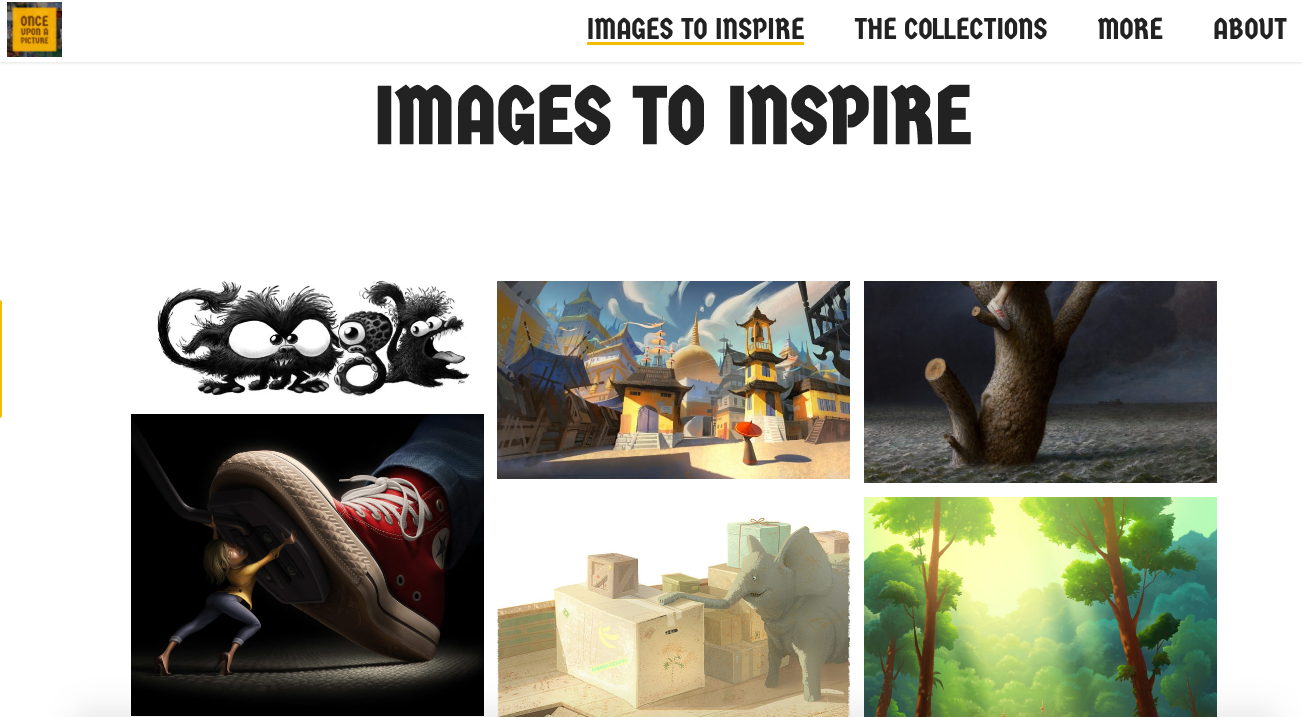
Images to Inspire

We know images have the power to spark creative thinking, but we seldom make the most of this fact when providing writing stimuli for students. Thankfully, this website has you covered! You can view by collection (e.g. Inference collection) or by latest image. All images are shared with permission by the original artist, which is great to model for your students.


Quick Draw

Quickdraw is a project from Google which is using Artificial Intelligence (AI) to recognize drawings.

You can help and have some fun along the way by adding to the world largest doodling data set. It is a quick timed activity so you only have 20 seconds to create each drawing and Google is trying to guess what you are drawing the whole time.

After you have tried 6 drawings, you can see what other people drew in response to the same prompt you had.

Monday, 17 April 2017

Digital Bytes - 17th April 2017


Clips

This new app has the potential to be the app of the year in education. If you haven’t already downloaded it, do it now.

It is incredibly easy to use and perfect for students who want to create a quick video.

One of the best features is the ability to to speak and the app automatically creates the text in real time. You can also add filters to your video and easily share it.


Autodraw

This is beyond amazing. Autodraw from Google is something you just need to try to believe.

Start to draw anything and Autodraw will recognize what you are drawing and give you options. Draw a house and you will see options for buildings pop up. How might you use this with your students? So many possibilities!

10 Apps for Creating Poetry on an iPad


Even though there are a number of apps that you may not have heard of, you can always use the ideas presented with apps you already have.

Monday, 19 September 2016

Digital Bytes 19th September 2016


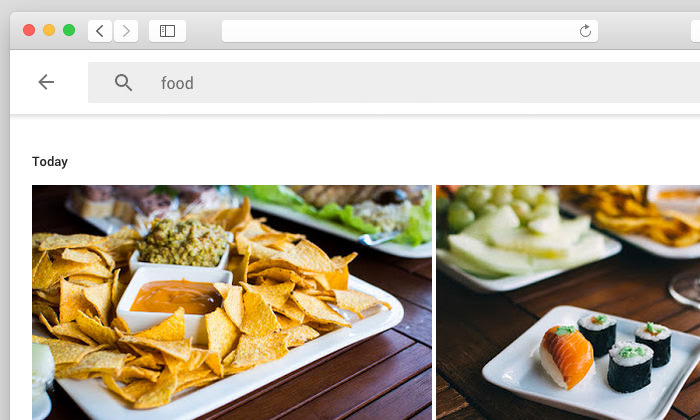
Google Photos Features You Need to Know About
If you aren’t using Google Photos now, you should be.
Here are great features of Google Photos that you may not know about. My favourite is the ability to search by keyword. Try it out. Type a keyword like ‘writing’ into the search bar and you will see all the photos with people writing. It. Is. Amazing.
The 28 Best Hidden iOS10 Features Everyone Should Know

REMINDER: with our school devices, we are not yet updating to iOS10, but here is a sneak-preview of some of the coolest new features available.
20 Practical Ways to use Google Forms in Class/School


Do you have any to add to the list? We would love to collect more great examples!

Monday, 23 May 2016

Digital Bytes 23 May


Google Cultural Institute

Some of you may be familiar with the Google Art project which gives everyone access to the details of amazing pieces of art.
It is part of a larger project called the Google Cultural Institute which includes Historic Moments and World Wonders.
Calm-Website.jpg
Tech Tools to Help you Relax

Report writing, exhibition and end of year farewells - perhaps it’s time for some tech tools to help you relax!

This round up of suggestions might give you just the calm you need to weather the end-of-school-year storm.
Great Apps to connect to Google Drive

Videonotes is a fantastic app that allows students to write timestamped notes on videos that are online.
It is just one app that connects easily to your Google Drive. Here are seven other apps that you can connect to your Drive including two apps, Pixlr Express and Pixlr Editor that can help you edit photos.

Friday, 6 May 2016

Leaving Well with Google - updated!

[Editor note: We have updated this very important post from our previous 2013 version! The information below is current as of 6 May 2016.]

This is always a difficult time of year as we say "see ya later" to colleagues, students and families who are leaving our school. To make the transition a little easier, here are some ideas on taking your Google items with you.

The first step to make the transition is to create a personal Google account for yourself. This will become the new home for all the things you'd like to transfer from your account at UWCSEA.

To take things with you, we will use Google Takeout, but first it's important to separate the things you want to leave behind from the things you want to take with you.

Google Drive

If you have any items you need to leave behind because they are needed by colleagues or friends, you'll need to make sure that your department account is added as an editor of the document. An easy way to do this is to create a new folder and add the department account as editor to the folder. Then, Add (hold down Option+drag) documents to this folder. They will automatically be editable by the department account.


For really important documents, you might consider transferring ownership over to the department account.

You'll also need to think about those files that you will want to take with you when you leave. One systematic way to do this is to create a separate folder in your My Drive where you collect these files (e.g. "Take Out" folder). As you go through documents in other parts of your Drive, add them to this "Take Out" folder -- be sure you add and not move by holding down the Option key when you drag to your new folder.

Cleaning your digital debris can be a daunting task, but it's necessary to make sure documents are left with those who depend on them, and that you have the documents you need when you depart.


Gmail

Just like with Drive, you should take this opportunity to sort through your email. If there are emails that people in your department or team need that they have not been cc'd on, please take some time to filter these and forward them to the relevant people.

Similar to how you organized your Drive, in GMail you can create a label for all the email you intend to take with you. When you go to use Google Takeout later, you can then choose if you want to bundle all of your email into that archive, or if you'd just like to take email with a particular label.


Sites

Before you leave, it's important to make sure that the Google Sites you've created for UWCSEA that need to remain behind -- e.g. event sites, curriculum pages, etc. -- have ownership changed to your department account. 

1. Go to the site you wish to transfer and click the Settings icon, then choose "Manage Site."
2. Click "Sharing and Permissions" and add the department account an "owner" of the site (you can have multiple owners of a site). Click "OK."


You may want to preserve some of the Google Sites you've created in the college and keep copies for yourself later. To do this, the steps are similar: 

1. Go to the site you wish to transfer and click the Settings icon, then choose "Manage Site."
2. Click on "Sharing and Permissions" and make your personal Google account an "owner" of the site.
3. Log in to your personal Google account and go to the address of the site you're transferring. Again, go to "Manage Site" and from the "General" section, press the "Copy this Site" button. 

This will make a copy of your UWCSEA site in your personal Google account space. 

WARNING: linked or embedded assets like YouTube videos, Google Drive content, or images may be broken and need to be re-linked, embedded or uploaded.


GMail, Blogger, Photos, YouTube, Google Drive, and more
Content from a variety of Google services can be transferred using Google Takeout. This utility allows you to select what services you'd like to take data from and bundles them into open and portable formats that you can then transfer to your personal Google account. 

For example, Takeout lets you download the original video from things you've uploaded to YouTube.
Takeout allows you to specify folders you'd like to export from your Google Drive (you don't have to take the whole thing). Note that you cannot export folders and documents from Drive where you are not the owner.

Once you've selected all the services and specific data, you can click "Next" and Google will tell you it is preparing your archive and will email you when it is ready. It might take a few hours or a few days, depending on how much data you have, but eventually you will get a .zip folder with all of the files.  Double click the downloaded .zip folder to uncompress them. Using Google Chrome, log into your personal Google account and upload the entire folder to your new account.


If you want more detail about this archive, or have questions about how to use Google Takeout, see this useful site from Google's Data Liberation Front.

We're sad to see you go, but wish you all the best. Hopefully this will make it a little easier to enjoy your last few moments here and not worry so much about your Google goodies.

Monday, 18 April 2016

Digital Bytes 18 April 2016

The Top Google Updates in 2016 You’ll Want to Know About

The folks at MakeUseOf have given us a great rundown on everything from Add-ons in Forms to new options in Image Search, with their overview on updates in 2016.

Check out the blog post to get the full story!
The Minecraft Generation

Clive Thompson at The New York Times, has written a fascinating piece outlining some of the historical events of the game, and identifying key reasons for its popularity.

One example? Creators had no budget for tutorials, however, this forced extensive information sharing amongst players.
How to Make Your Google Presentations Shine

Google Slides templates have always left something to be desired. But now there are some new updates and there are a number of enhanced options.

This article gives some advice on how to make your Google Presentations shine. There are a number of great options mentioned in the article including Slides Carnival.

It also mentions using Google Slides to create other products such as book reports, certificates, and portfolios.

Monday, 11 April 2016

Digital Bytes 11 April 2016

Everybody Panic! 5 Ways Social Media is Changing your Brain

Responding to a popular TED talk, Lisa Nielson attempts to debunk some of the myths raised. Some really interesting points! Check it out!
The Real Me

Prompted by a conversation she had with a group of people who argued it’s impossible to have decent conversations because people are “addicted to their phones”, Kim Cofino has written a thoughtful blog post in which she shares how she is the same person, both online and offline.
14 Google Search Tricks

Most of us use Google search every single day. The same can be said for our students.

Have you ever wanted to compare two foods? Just write “vs” between the foods in the search box. What about scheduling an alarm for a nap? Google can do that.

Monday, 2 November 2015

Digital Bytes - November 2, 2015


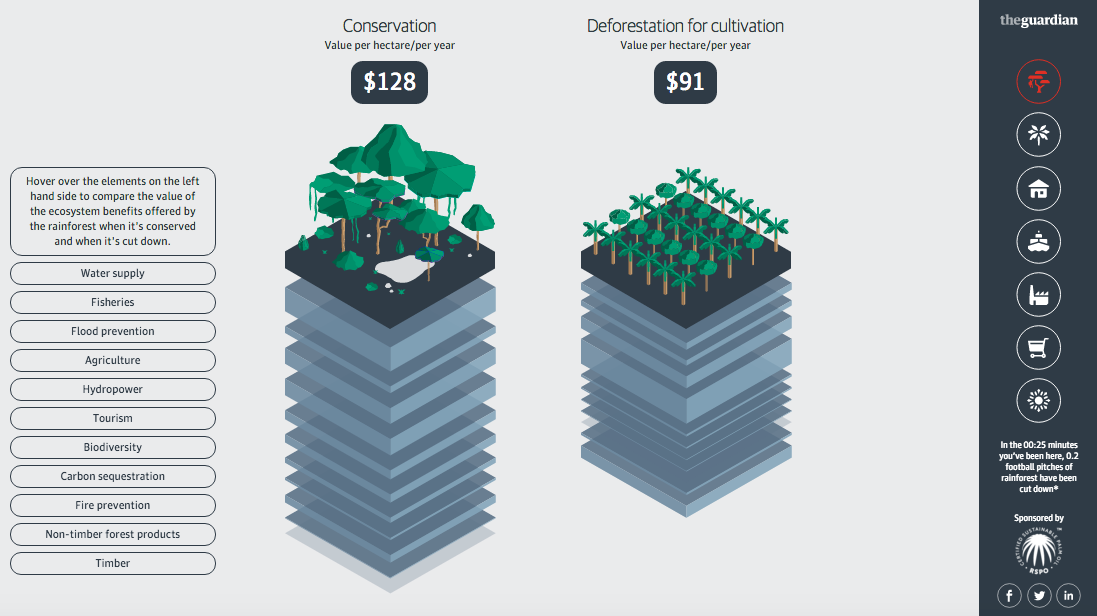
The haze we have experienced over the past few months in Singapore has brought the conversation of palm oil to the front of everyone's thoughts.

This website does an amazing job of exploring the use of palm oil and uses a variety of media such as videos, infographics, sounds, text, photos and interactive elements.

We can clearly see when a variety of media are mixed, students will engage with the information and learn quickly and easily. This is a fantastic mentor text for our students.

Many of you may know that you can drag an image into Google and it will search the web for that image or images similar to it.

What you may not know if that there is so much more to Google's ability in this image search.

This short video does a fantastic job of showing some of those features and how you might use it in the classroom with your students.

We all have students that need a little or a lot of help in our classes.

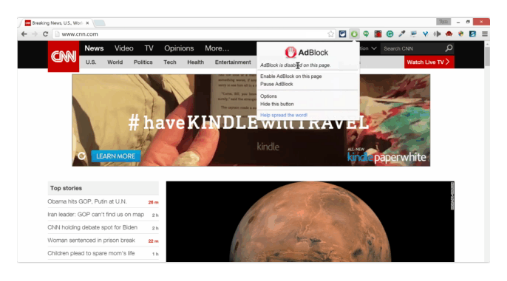
Here are 8 Chrome extensions to help those struggling students in your class. Everything from Ad Block and Readability to help students who have trouble focusing or get off task easily to Read and Write for Google which allows students to highlight text on web pages.

Monday, 5 October 2015

Digital Bytes October 5, 2015

This week's Digital Bytes will change your life!

There are 3 fantastic articles: Converting photos of text into actual text using Google Drive, the importance of school leadership understanding the digital world and 33 digital tools for formative assessment.


Monday, 24 August 2015

Digital Bytes August 24, 2015

This week's digital bytes includes articles about using safari reader view to get rid of distractions on webpages, 14 essential search tips for students when using Google and teachers sharing their thoughts on how to develop student digital portfolios.

Monday, 16 March 2015

Digital Bytes March 16, 2015

This week's Digital Bytes is loaded up with Google tools.

Within every YouTube account is Creator Studio which allows you to listen to and download free music that you can use for a variety of purposes. Have a look at Google Keep for note taking and keeping yourself or a group of students organised. Finally, if you type the word 'Timer' into a Google search box, you will get a timer which you can use to set time for a task.


Friday, 7 March 2014

Email, Spam, YouTube Subscriptions and Snopes

One of the many wonderful things about having Google Apps at our school is that our students are able to have GMail accounts. This really does enable them to have the functionality we adults enjoy with having an email, with the added bonus of learning to use it in a supportive school environment. It allows teachers to play a role in helping guide them in appropriate use.

In Grade 5, some students expressed their frustration at the many emails they were being sent by YouTube to their school accounts. Some were puzzled as to how this happened in the first place, so we set about addressing the issue.

While logged in to their school GMail account, some students had (deliberately or inadvertently) subscribed to some YouTube channels. This most likely happened at home, where other family members share the same computer. Daily notifications were coming to their Inbox, alerting them to new content.

The quickest way to solve this problem was to show students where they can manage their subscriptions, and remove subscriptions that they weren't interested in, or might distract from their learning.

We explored how to unsubscribe from other emails too, e.g. marketing or other spam emails, using the unsubscribe link at the bottom of such emails. Other options include reporting the email as spam (the exclamation point in the circle above the email), or creating a filter to delete unwanted emails.

The subject of chain-mail or stories that employ scare tactics to get users to forward the email on to others, was another topic of discussion.

Frequently, students recognise that an email might be chain-mail and untrue, although they forward it on just in case, thus perpetuating the problem. Snopes.com is a great website to check the validity of emails they receive. Simply type the keywords into the search box, and you will find out whether it is true or false, when it originated and how it has been spreading.

Our aim is that students learn the skills to effectively manage their school email accounts, which will help them manage any other email accounts they may have.

Wednesday, 16 January 2013

Sharing Student Work on Google Sites

At UWCSEA we use digital tools frequently for student learning. Grade 3-5 students have a Google Site which they are using to house their digital content. Below are some workflows for sharing student work to Google Sites easily.

From Pages/Keynote

Google Sites does not integrate easily with .pages or .key files, but there is a work around. Follow these steps to get your Pages/Keynote documents onto Google Sites

1. Open your Pages Document and click on File -> Export -> PDF


2. Click Next


3. Save to your desktop


4. Open Google Drive

5. Click on Upload -> Files and select PDF to upload (or, simply drag PDF into Google Drive)


6. Click on Share, and make your document viewable to anyone at UWC with the link, or Public on the web


7. Click on File -> Embed this PDF File


8. Copy the HTML Code


9. Go to your Google Sites, and start a new post for the work you want to share.

10. Click on the HTML button


11. Paste the HTML code and click Update

12. Your document will be visible once you press Save.

Here's a quick video to show the process if you prefer.


How to Embed a PDF into a Google Site from UWC South East Asia on Vimeo.

Movies

Google Drive can help you embed your movies, if they are in .mov or .mp4 or .m4v format. Follow these steps:

1. Open Google Drive

2. Click on Upload -> Files and select Movie to upload (or, simply drag Movie into Google Drive)

3. Click on Share, and make your document viewable to anyone at UWC with the link, or Public on the web


4. Go to your Google Sites, and start a new post for the work you want to share.

5. Click on Insert -> Video -> Google Docs Video


6. Search for the video you wish to include by typing its title.

7. Click on the video and press Select 

8. Deselect Include Title, and press Save


9. Choose how you want it aligned on the page. When you are ready, click on Save or Save Draft to see the embedded video.


Google Docs

Google Docs are the easiest to embed in a Google site. Follow these steps:

1. Go to your Google Sites, and start a new post for the work you want to share.

2. Click on Insert -> Document


3. Type in the title of the Doc you want to insert. Tick the Doc you want and click Select.

4. Deselect Include Title and click Save


5. Choose the alignment you would like. When you are ready, click on Save or Save Draft to see the embedded document.