Book Creator Summer Journal
A fantastic way to remember some of the details from your summer is to keep a journal. Last summer, both my kids used Book Creator to capture some of the things that happened on a daily basis. It was great for photos and video and voice records.
| |
Pages, Keynote and Numbers for iOS get over 500 Shapes
Creating infographics in Keynote or Pages just got way easier! Instead of going to the Noun Project or Flaticon, you can find icons right on your iPad or Mac with the update to the iOS iWork suite.
You can change the colours of the icons and even copy and paste them into other apps like Book Creator.
| |
|
|
Storybird
Images inspire writing - we know this to be true. Storybird helps with this process by providing hundreds of images for students to use in their writing of online, digital books. From single images, to picture books and longform books, there are a range of illustrative styles to choose from. Teachers can create class accounts, books can be downloaded or shared online, and even printed into physical books. Definitely one to check out!
|
Once Upon a Picture
Staying on the theme of images to inspire writing, Once Upon a Picture is another fantastic website you will want to bookmark. Organised into collections, such as Fiction, Inference, PSHE etc, each image comes with a series of questions to encourage students to “read” the image carefully. This approach helps when writing, but also when viewing a range of visual media. Enjoy!
|
Showing posts with label keynote. Show all posts
Monday, 19 June 2017
Digital Bytes - 19th June 2017
Labels:
Book Creator,
Digital Bytes,
images,
keynote,
numbers,
pages,
reading,
StoryBird,
writing
Friday, 17 March 2017
The Power of a Small Idea
I was checking Twitter one day, when this tweet by Anna Davies jumped out at me, with its striking red and black colour scheme and professional-looking images.
When I see an amazing idea, like the images in Anna's tweet, I always want to try it out. As I don't have a class of my own, I have to pitch the idea to my colleagues and hope that it sparks an interest.
As it happened, our school was just embarking on a PSE unit around the Power of Words. Tech Mentor Mike Bowden jumped on board and took the idea to his Grade 3 team.
Students prepared for the poster by finding a quote that resonated with them about the Power of Words. They took a photo of themselves on a plain background, ensuring to leave enough space to fit the quote.
In Keynote, students added the image, then reduced the saturation to turn it black and white. They used the limited colour palette of red, black and white for the text, experimenting with placement and rotation as needed.
This was a very rich learning task for our students. There were a lot of technical and design skills that we were able to build into an authentic context that met our curricula outcomes.
Naturally, we shared examples of our finished posters on Twitter - these examples were from Mandy Whitehouse's class.
It turns out that Anna had been inspired by my Dover colleague, Nicki Hambleton, who created posters with her Middle School students, based on the work of Designer, Graphic Artist and Photographer, Barbara Kruger.Anna Davies on Twitter
G5 deeply personal hopes&fears on display. Seeing each other from a different perspective #ishcmcib thanx 4 the inspiration @itsallaboutart
When I see an amazing idea, like the images in Anna's tweet, I always want to try it out. As I don't have a class of my own, I have to pitch the idea to my colleagues and hope that it sparks an interest.
As it happened, our school was just embarking on a PSE unit around the Power of Words. Tech Mentor Mike Bowden jumped on board and took the idea to his Grade 3 team.
Students prepared for the poster by finding a quote that resonated with them about the Power of Words. They took a photo of themselves on a plain background, ensuring to leave enough space to fit the quote.
In Keynote, students added the image, then reduced the saturation to turn it black and white. They used the limited colour palette of red, black and white for the text, experimenting with placement and rotation as needed.
This was a very rich learning task for our students. There were a lot of technical and design skills that we were able to build into an authentic context that met our curricula outcomes.
Naturally, we shared examples of our finished posters on Twitter - these examples were from Mandy Whitehouse's class.
What happened next is what I LOVE about social media. Jose O'Donovan saw our examples on Twitter and got his students to make their own - this time, posters about Kindness.Keri-Lee Beasley on Twitter
G3 posters: Power of Words @annadeibisu @itsallaboutart Thanks 4 the inspiration! #uwclearn #pse @debgordon123 @MickBowden @maw0305
So in case you are the sort of person who worries about sharing the learning in your classroom, take the plunge! You never know the power of your small idea and the impact it may have on others.Mr O'Donovan on Twitter
Made some cool posters for Kindness week next week @HISEdTech #iPadclub Thanks @klbeasley !@itsallaboutart #his_learning
Labels:
artist,
inspiration,
keynote,
photography,
posters,
Twitter
Monday, 22 August 2016
Using your iPad or iPhone as a Remote to Control Your Keynote
Keynote gives you the ability to control your presentation from an iPhone or an iPad. This allows you, as the presenter, the chance to move around and not have to stand beside your computer.
Your notes from your Keynote will be available to you on your iPad. You can tap the screen or swipe from the right to the left to advance your slide or you can swipe from the left to the right to go back to the previous slide.
To connect your iPad to your computer, they both need to have Keynote open and be connected to the same wifi network. The tutorial video below shows the screens side by side in real time and will help you connect Keynote on your iPad to Keynote on your computer.
Keynote remote setup from UWC South East Asia on Vimeo.
Another fantastic feature of controlling your Keynote from your iPad is the ability to draw on the slides.
Your notes from your Keynote will be available to you on your iPad. You can tap the screen or swipe from the right to the left to advance your slide or you can swipe from the left to the right to go back to the previous slide.
To connect your iPad to your computer, they both need to have Keynote open and be connected to the same wifi network. The tutorial video below shows the screens side by side in real time and will help you connect Keynote on your iPad to Keynote on your computer.
Keynote remote setup from UWC South East Asia on Vimeo.
Another fantastic feature of controlling your Keynote from your iPad is the ability to draw on the slides.
Monday, 9 May 2016
Digital Bytes - May 9, 2016
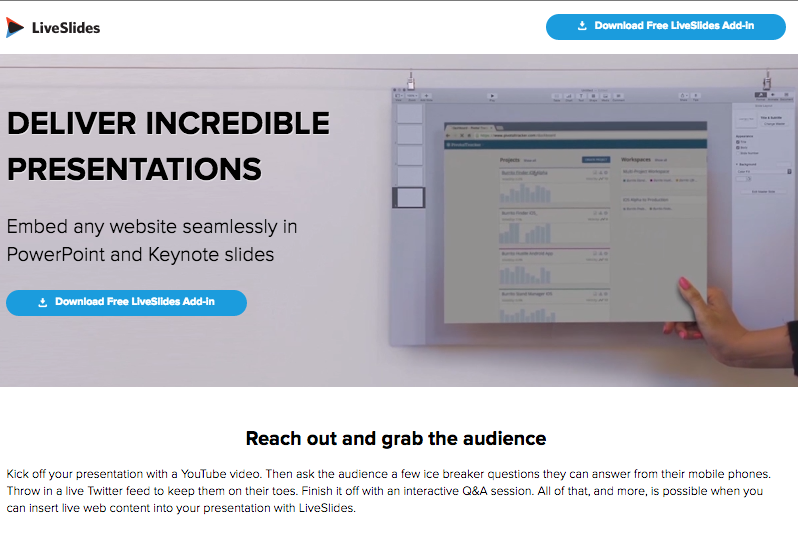
Live Slides
Live Slides
You could include an internet based poll like Poll Anywhere, a
| |
A fantastic example of someone who wants to share her passion for books with the world is Livbits.
A great example of video review Mentor videos for young kids.
| |
Six-Word Story, Six-Unique Shots
In the world of micro writing of tweets and instant messaging, 6
Ernest Hemingway's famous 6 word story is a great example: “For sale: baby shoes, never worn.”
This free ebook will get you started in the world of six word stories.
|
Labels:
6 word stories,
Digital Bytes,
ebook,
Instagram,
keynote,
Livbits,
live slides,
presentations,
Vimeo
Tuesday, 16 June 2015
Designing Effective Presentations
Every educator today needs to learn how to present effectively. But how much do they know about what makes an effective presentation?
Garr Reynolds, author of the popular book Presentation Zen Design, notes:
Embedding the presentation here would not make sense. If you could understand the content of our presentation just by looking at the slides, then we would have failed in our job. There would be no point presenting if you could just read our slides! However, we did create some other resources which might be useful to share.
Handout
We wanted our audience engaged in our presentation. We didn't want them to feel they had to take copious notes as we spoke. We prepared this handout, because there were a few key things we wanted them to take away from the presentation, and we thought this 1-page handout could be posted at a desk to refer to when designing presentations later.
Finding Quality Images
Finding the right images to support the message you are sharing takes time - and is time well spent. This slide-doc takes you through how to find quality images. It is geared for teachers at our school, so bear that in mind as you look through.
Really understanding what your audience needs and is hoping to gain from your presentation is important. We had participants in our workshop consider the needs of their audience using this handout we adapted from Nancy Duarte's fantastic resource Resonate.
Additional Resources
Some of our favourite resources for presentation design can be found here:
Garr Reynolds, author of the popular book Presentation Zen Design, notes:
"For many of us, there is a hole in our education when it comes to visual communication... In the past, the tools for creating high-quality graphics and multimedia presentations belonged only to a select few. Today, those tools are in the hands of virtually anyone with a computer. However, possessing the hardware and software tools and knowing how to operate them does not a designer make." (p. 22, Presentation Zen Design).My colleague Dave and I are very passionate about Visual Literacy. We want to give educators the tools to develop their Visual Literacy skills, and presented recently to our fabulous Primary Leadership Team on Designing Effective Presentations.
Embedding the presentation here would not make sense. If you could understand the content of our presentation just by looking at the slides, then we would have failed in our job. There would be no point presenting if you could just read our slides! However, we did create some other resources which might be useful to share.
Handout
We wanted our audience engaged in our presentation. We didn't want them to feel they had to take copious notes as we spoke. We prepared this handout, because there were a few key things we wanted them to take away from the presentation, and we thought this 1-page handout could be posted at a desk to refer to when designing presentations later.
Finding Quality Images
Finding the right images to support the message you are sharing takes time - and is time well spent. This slide-doc takes you through how to find quality images. It is geared for teachers at our school, so bear that in mind as you look through.
Focus on the Audience
Really understanding what your audience needs and is hoping to gain from your presentation is important. We had participants in our workshop consider the needs of their audience using this handout we adapted from Nancy Duarte's fantastic resource Resonate.
Additional Resources
Some of our favourite resources for presentation design can be found here:
We hope you found these useful! Please let us know if you would like further information about designing effective presentations.
Labels:
creative commons,
design,
graphic design,
images,
keynote,
presentations,
tutorial,
visual literacy
Thursday, 28 August 2014
The Noun Project
| Thumbs Up designed by Nick Holroyd from the thenounproject.com |
The Noun Project. It is incredibly useful in the classroom, and is a delight to use.
You can search for anything on The Noun Project and find a graphical representation of it.
Designers upload their creations to the site, and people can download and use these icons as long as they attribute the designer. Attribution is made incredibly easy: all you do is click on the 'how to attribute' button, and it's all ready for you to copy-and-paste.
The really exciting thing for me, is the ability to change the colour of the icons using a simple Chrome Extension called
'The PNG Project'. Provided you know the hex code (I use the websafe colour palette in Pages or Keynote to find mine usually - though a google search of hex codes would lead you to some great sites), you can change the icons to match whichever colour scheme you like.
For details on how to use The Noun Project, please watch the tutorial below.
Labels:
colour,
design,
graphic design,
hex codes,
images,
keynote,
pages,
The Noun Project
Friday, 22 August 2014
Attaching New Keynote or Pages Files to Email or Putting Them in Google Drive
When using the new Keynote or Pages applications, you cannot attach the files directly to emails or put them right in to Google Drive. There are two simple solutions to fix this problem. Save the files as Keynote '09 or Pages '09 files or compress the files before attaching them to emails or inserting them into Google Drive. Have a look at the screencast.
Tuesday, 16 April 2013
Presentations with Haiku Deck
Haiku Deck is a wonderful free app for iPad which really encourages high quality presentations using Creative Commons images.
Here's a quick tutorial on how to get started:
1. Open the Haiku Deck app and click on the + button to start a new presentation.
3. This is your user interface. There are 3 tabs on the left:
Text
Images
Layout
4. Tap to add any text you want to appear while in the text tab. Don't use too many words! Space is limited for a reason.
5. This is the image tab. Type some keywords or click from the keywords suggested and scroll to select an image. A preview is available on the right.
Here's a quick tutorial on how to get started:
1. Open the Haiku Deck app and click on the + button to start a new presentation.
2. Type in a title to your new presentation.
3. This is your user interface. There are 3 tabs on the left:
Text
Images
Layout
4. Tap to add any text you want to appear while in the text tab. Don't use too many words! Space is limited for a reason.
5. This is the image tab. Type some keywords or click from the keywords suggested and scroll to select an image. A preview is available on the right.
Labels:
apps,
creative commons,
Haiku Deck,
how_to,
iPad,
keynote,
presentations,
primary
Subscribe to:
Posts (Atom)