Showing posts with label iPad. Show all posts

Monday, 17 April 2017

Digital Bytes - 17th April 2017


Clips

This new app has the potential to be the app of the year in education. If you haven’t already downloaded it, do it now.

It is incredibly easy to use and perfect for students who want to create a quick video.

One of the best features is the ability to to speak and the app automatically creates the text in real time. You can also add filters to your video and easily share it.


Autodraw

This is beyond amazing. Autodraw from Google is something you just need to try to believe.

Start to draw anything and Autodraw will recognize what you are drawing and give you options. Draw a house and you will see options for buildings pop up. How might you use this with your students? So many possibilities!

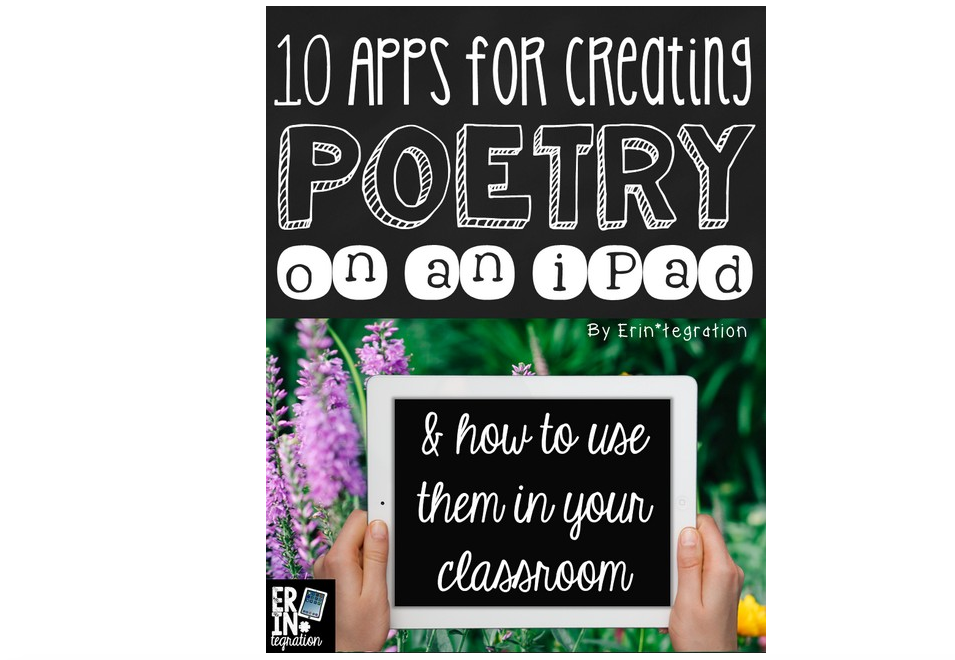
10 Apps for Creating Poetry on an iPad


Even though there are a number of apps that you may not have heard of, you can always use the ideas presented with apps you already have.

Monday, 5 December 2016

Hour of Code in Grade 1


The resources around Computer Science Education Week and Hour of Code are just begging to be used. There are so many developmentally appropriate entry points for every age level - it's a no-brainer!

In Grade 1, we began with an unplugged activity. As a class, we created a code to use, and in pairs, they took turns being the coder (who created the code) and the robot (who carried out the code). It was great to see them role-play being the robot, and carry out the instructions the coder had left for them on whiteboards.


Following that, we got our iPads and explored Course 1, Stage 4 of code.org's amazing resource for 4-6-year-olds. To say they enjoyed the Angry Birds Maze activity would be an understatement! Many of them reached Stage 7 in only a very short window of time, so it was impressive to see their computational thinking skills strengthen!


Below is a short video of our exploration with Coding. We would love to hear what you are up to with Coding in the Early Years. Please leave us a comment below.

Thursday, 1 December 2016

Ideas for Shared iPads


How lucky are we? We recently added 6 iPads to each G3-5 class, augmenting their existing 1:1 Macbook Air laptops.

Planning for valuable use of shared devices requires some creative thinking, particularly when you are used to 1:1 devices. That said, the small number of devices provides a great opportunity to differentiate for powerful learning, maximise small-group rotations and engage in collaborative activities.

Together with some of our wonderful Digital Literacy Mentors (Mike & Jocelyn), Dave and I developed some ideas about how to best manage shared devices and use them effectively to support learning.

We hope you find these tips for shared devices useful.

Monday, 28 November 2016

Digital Bytes - 28th November, 2016


Coding apps available on iPads

We already have a number of apps available to support coding on our iPads.
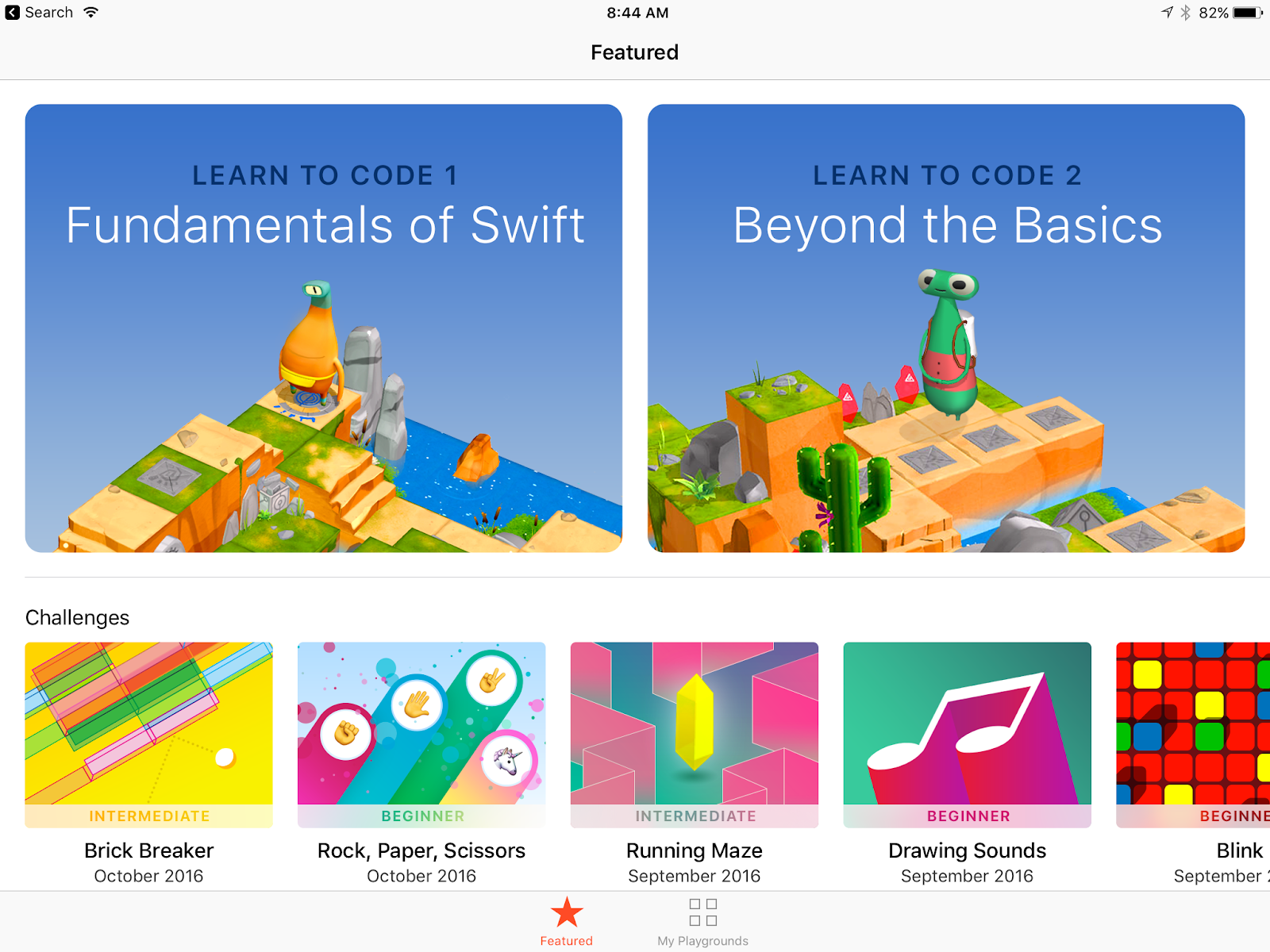
Starting with Scratch Jr and Daisy the Dinosaur on Infant iPads and then Hopscotch there is something for everyone. If your iPads are updated to iOS 10, you can use Swift Playgrounds which is great for grades 3-5.
Unplugged Activities

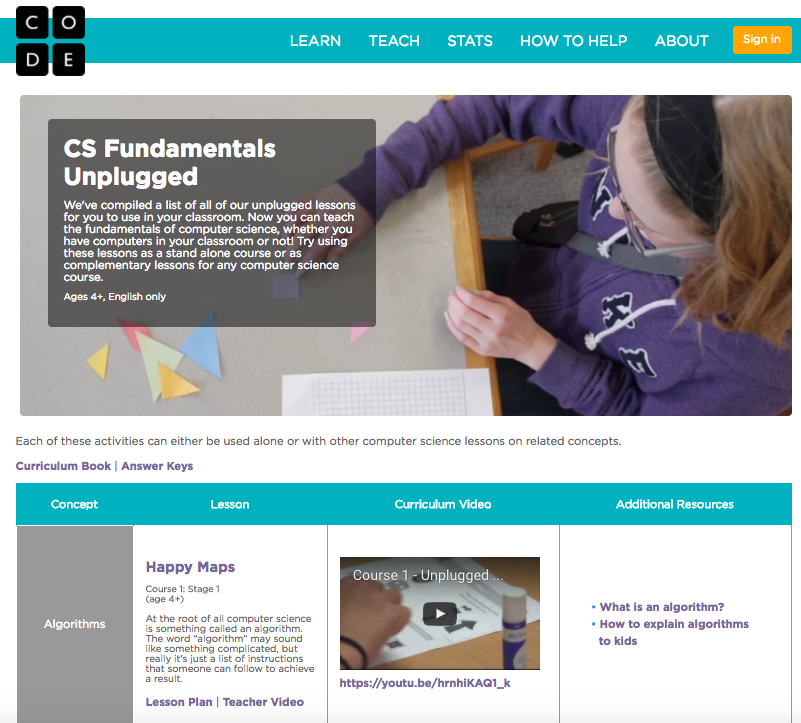
You don’t need to be on a device to learn the fundamentals of coding. Code.org has a whole section of unplugged activities.

They also have a mix of unplugged and computer based activities for 4-6 year olds like Move it, Move it and Plant a seed.
There are also loads of age appropriate activities for grade 1 or older. For students in grade 3 or older, there are two options available called course 3 and course 4.

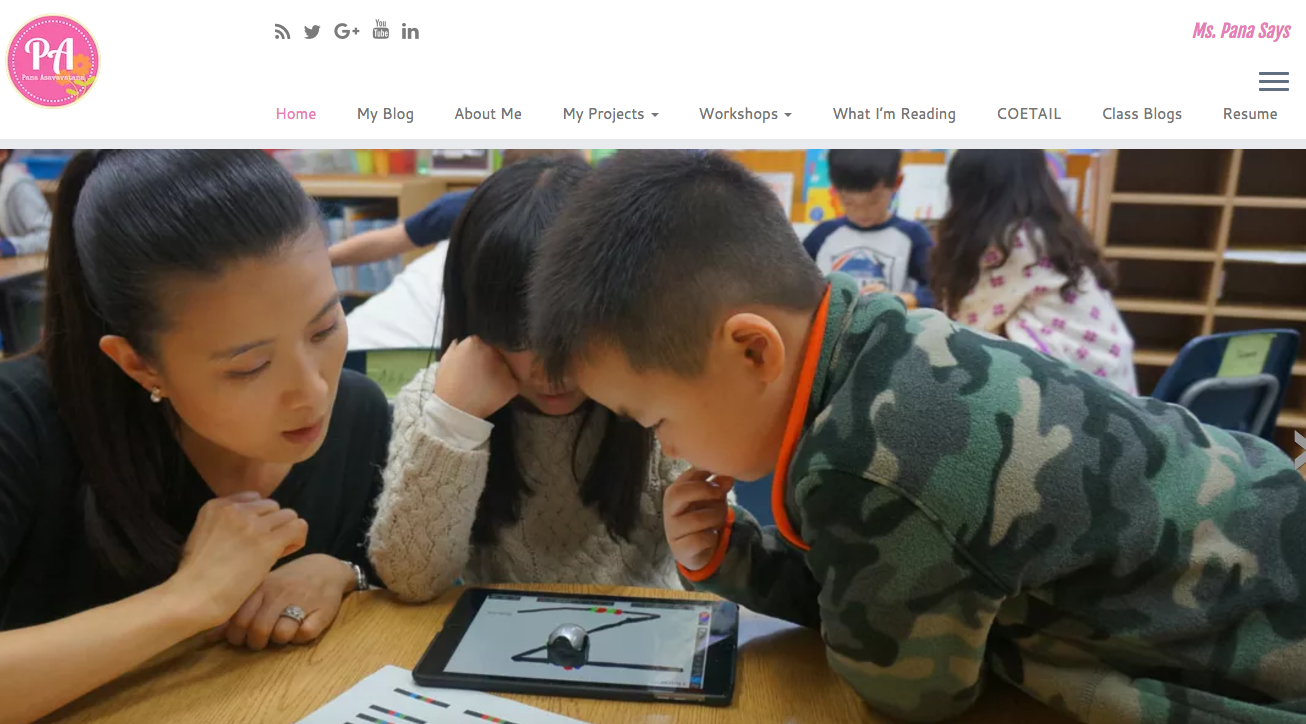
Pana is an early years educator, an Apple Distinguished Educator, a Book Creator Ambassador and an accomplished speaker and presenter.
She in an expert in supporting teachers to integrate coding into their classroom and has initiatives like Kids Kode Exchange, using Ozbots, animal habitat robots, and many more. She does an amazing job sharing what she is doing so others can follow along.

Wednesday, 16 November 2016

Documentation Using Technology

"Stand aside for a while and leave room for learning, observe carefully what children do, and then, if you have understood well, perhaps teaching will be different from before." 
- Loris Malaguzzi 
Inspired by the work of Reggio Emilia, UWCSEA East infant teachers have been exploring documentation to make learning and thinking visible. The role of the teacher in this process is to observe the students carefully, look for those significant moments, and capture images/videos together with examples of student voice.

This documentation is brought to their teaching teams so they can interpret it, explore options for next steps for the students involved, and make connections to the curriculum where relevant.

We had the opportunity to present to the infant teachers about ways technology can help support the documentation process. As you can imagine, technology is a natural fit for this sort of process, so we had lots to share.

Our presentation is below. We would love to hear your ideas about ways technology can enhance the documentation process. Leave us a comment!

Tuesday, 8 November 2016

What if we podcastified our PD?

How do we make our learning audible?

This past weekend, the Dover Campus hosted an annual iPad conference (see  via Twitter for more).

In the second episode of 'Podcast UWCLearn' Keri-Lee and Dave reflect on their learning experiences and offer their thoughts on where to next.

This post hosts that episode with two agendas:

1. Learn more about the iPad conference and think about ways to follow up with Keri-Lee or Dave.

2. Think about using Podcast UWCLearn as a way to follow up on your PD experiences this year. If you are interested in asking a coach to guide you through that conversation, we are happy to do so. If you have a learning experience you want 'podcastified,' please let a DLC know and we will schedule the chat. Could this be a better way to share our learning with the broader community?

Featured in this episode are:

Pana Asavavatana

@PanaAsavavatana 

The link to her teddy bear project is here.


Monday, 7 November 2016

Digital Bytes 7th November 2016


The iPad Conference over the weekend was an action-packed 2 days of fun and learning. We have decided to make this edition of the Digital Bytes have an iPad focus. Enjoy!

IMG_9595.JPG
Visual Thinking

Two great apps we love for visual thinking are Adobe Capture & Adobe Illustrator Draw (both free). Create illustrations out of your photos, or draw over the top of a picture to create beautiful images, or use a combination of text and images to create visual notes. Remember to sign up for a class account and have your students log in with that as they are under 13.
Nicki Hambleton’s Precon, Learning & Thinking out Loud, had loads of resources for visual note-taking & visual thinking routines we urge you to explore!
Fantastic Maths Apps

Make sure you have a look at some of the great math apps we have available on our iPads. Have a look at Number pieces which is a base ten blocks app, Number line, and Fractions. The amazing thing is that they are available online as well.
Touchcast app

Touchcast is a fantastic green screen app with so many possibilities.

One of the coolest features is that you can put a YouTube video in the background of your video. You can also annotate videos and webpages.  

Monday, 19 September 2016

Digital Bytes 19th September 2016


Google Photos Features You Need to Know About
If you aren’t using Google Photos now, you should be.
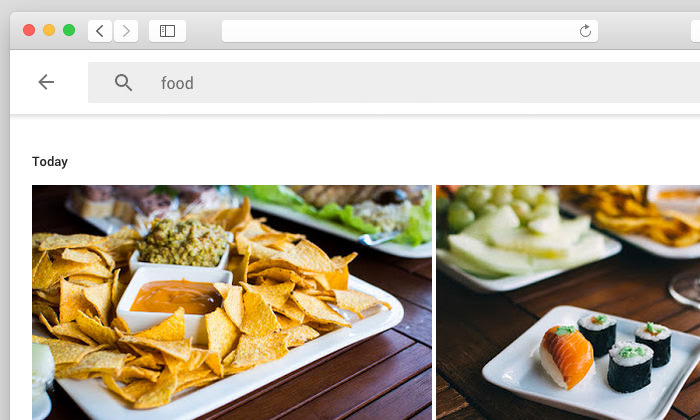
Here are great features of Google Photos that you may not know about. My favourite is the ability to search by keyword. Try it out. Type a keyword like ‘writing’ into the search bar and you will see all the photos with people writing. It. Is. Amazing.
The 28 Best Hidden iOS10 Features Everyone Should Know

REMINDER: with our school devices, we are not yet updating to iOS10, but here is a sneak-preview of some of the coolest new features available.
20 Practical Ways to use Google Forms in Class/School


Do you have any to add to the list? We would love to collect more great examples!

Monday, 5 September 2016

Digital Bytes 5th September, 2016


The Zen Art of Managing Smartphone Photos
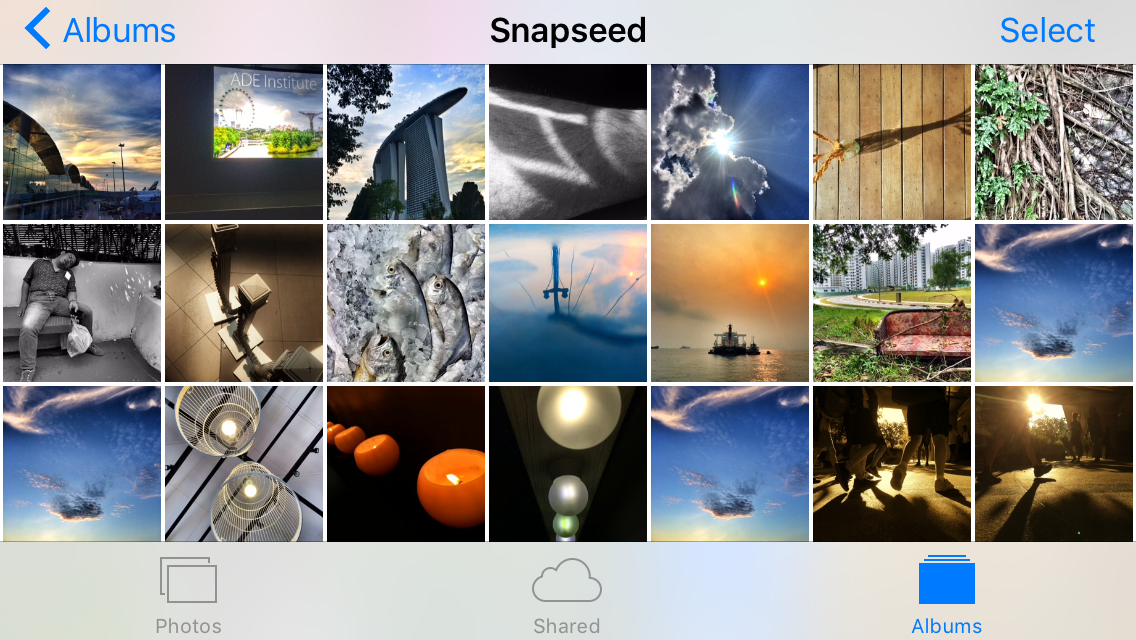
We get a lot of questions about the best way to manage the photos on your phone.

Calling Screen Time Digital Heroin is Digital Garbage

You may have seen an article calling screen time digital heroin.

This article take a critical look at that article and its claims and provides a rational viewpoint.
How to Extract an Image From Google Docs

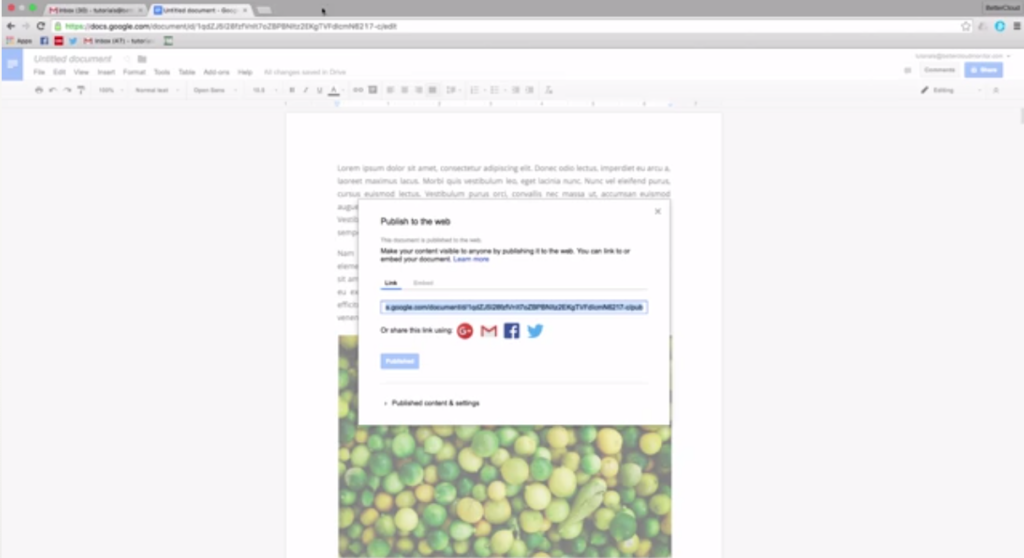
There are a number of ways to do this including publishing the doc to the web, saving it as an HTML file and a google docs add on.

Monday, 22 August 2016

Using your iPad or iPhone as a Remote to Control Your Keynote

Keynote gives you the ability to control your presentation from an iPhone or an iPad. This allows you, as the presenter, the chance to move around and not have to stand beside your computer.

Your notes from your Keynote will be available to you on your iPad. You can tap the screen or swipe from the right to the left to advance your slide or you can swipe from the left to the right to go back to the previous slide.

To connect your iPad to your computer, they both need to have Keynote open and be connected to the same wifi network. The tutorial video below shows the screens side by side in real time and will help you connect Keynote on your iPad to Keynote on your computer.

Keynote remote setup from UWC South East Asia on Vimeo.

Another fantastic feature of controlling your Keynote from your iPad is the ability to draw on the slides.


Monday, 7 March 2016

Digital Bytes 7 March


3 Reasons Students should own your Classroom’s Twitter & Instagram Accounts
Kayla Delzer (@topdogteaching) puts forward a solid case for students taking ownership of class Twitter and Instagram accounts, citing the huge impact it can have for students in understanding the true meaning of web-presence in a safe environment. Delzer also has a social media bootcamp for parents, so they understand what is being asked of students, and of themselves in return.
Google Keep
When we think of Google, the first thing that comes to mind is probably searching and Google Docs in Drive. Google Keep is a great note taking app that is included as part of your Google suite of apps. You can easily make lists, add images and audio recordings. Because it is Google, you can easily make these collaborative and share them with others.
Kindergarten Green Screen Animal Interviews
Options for sharing understanding in Kindergarten have taken a huge upswing since the advent of mobile technology. Green screen interview videos are a great marriage between technological skill and wizardry, and analogue research. Students worked in groups of 4 to research about different animals and chose a habitat image to form the background of their video. Check it out!

Monday, 29 February 2016

Digital Bytes - 29 February, 2016


Managing Photos on Your iPad and iPhone

Some great tips for working with photos that you have already captured on your iPad or iPhone. Did you know you can quickly select multiple photos by dragging your finger over them? Did you know that you can search for photos by location or date? Have a look at some great tips in this article.
Mathematics in Real Life

This YouTube video playlist has a number of riddles and maths problems that you can use with your class.
These are a great source to engage your students and explore problem solving with your class.

7 Teaching Resources for Film Literacy

With the Oscars this week, it is a good time to look at film literacy. This site has a number of resources to help teachers including an interview with Martin Scorsese on the importance of film literacy and a number of activities and lesson plans.