Book Creator Summer Journal
A fantastic way to remember some of the details from your summer is to keep a journal. Last summer, both my kids used Book Creator to capture some of the things that happened on a daily basis. It was great for photos and video and voice records.
| |
Pages, Keynote and Numbers for iOS get over 500 Shapes
Creating infographics in Keynote or Pages just got way easier! Instead of going to the Noun Project or Flaticon, you can find icons right on your iPad or Mac with the update to the iOS iWork suite.
You can change the colours of the icons and even copy and paste them into other apps like Book Creator.
| |
|
|
Storybird
Images inspire writing - we know this to be true. Storybird helps with this process by providing hundreds of images for students to use in their writing of online, digital books. From single images, to picture books and longform books, there are a range of illustrative styles to choose from. Teachers can create class accounts, books can be downloaded or shared online, and even printed into physical books. Definitely one to check out!
|
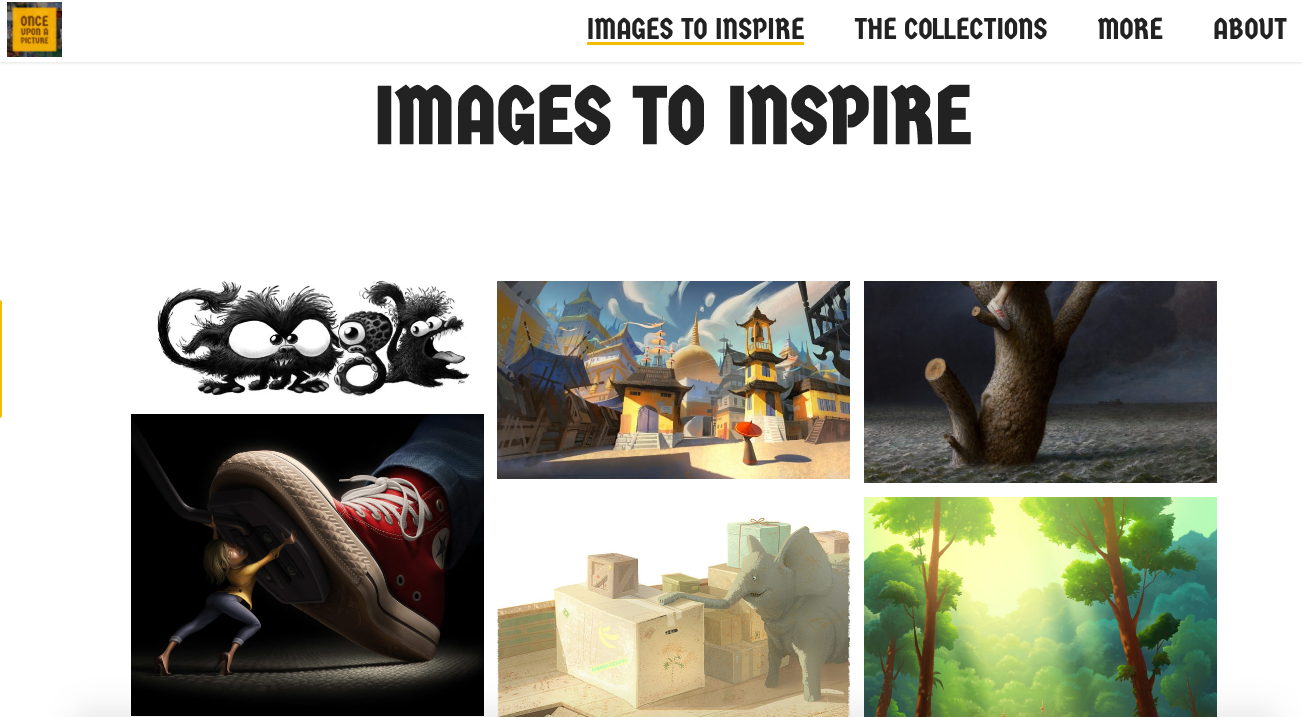
Once Upon a Picture
Staying on the theme of images to inspire writing, Once Upon a Picture is another fantastic website you will want to bookmark. Organised into collections, such as Fiction, Inference, PSHE etc, each image comes with a series of questions to encourage students to “read” the image carefully. This approach helps when writing, but also when viewing a range of visual media. Enjoy!
|
Showing posts with label images. Show all posts
Monday, 19 June 2017
Digital Bytes - 19th June 2017
Labels:
Book Creator,
Digital Bytes,
images,
keynote,
numbers,
pages,
reading,
StoryBird,
writing
Monday, 22 May 2017
Digital Bytes 22nd May 2017

Flipgrid
Flipgrid is an easy to use video reflection tool.
As a teacher, you can post a prompt and your students can respond with a video reflection. Here is an example from Grade 4 teacher, ADE and Flipgrid Ambassador, Andy McGovern.
As always, remind your students to use headphones for the best quality recording.
| |
Images to Inspire
We know images have the power to spark creative thinking, but we seldom make the most of this fact when providing writing stimuli for students. Thankfully, this website has you covered! You can view by collection (e.g. Inference collection) or by latest image. All images are shared with permission by the original artist, which is great to model for your students.
| |
Quick Draw
Quickdraw is a project from Google which is using Artificial Intelligence (AI) to recognize drawings.
You can help and have some fun along the way by adding to the world largest doodling data set. It is a quick timed activity so you only have 20 seconds to create each drawing and Google is trying to guess what you are drawing the whole time.
After you have tried 6 drawings, you can see what other people drew in response to the same prompt you had.
|
Labels:
flipgrid,
Google,
images,
photography,
Quick Draw,
writing,
Writing Workshop
Wednesday, 22 February 2017
Friday Friendly Advice: Google Slides to co-author an eBook?
Google is great and getting better and better.
Did you know you can change the size of a slide in Google Slides to build an eBook?
STEP ONE: Go to file, and select 'Page Setup'
STEP TWO: select 'custom' and resize your slide
STEP THREE: edit your book, set up a template and share: you can now collaboratively co-author an eBook
While there isn’t an automatic table of contents generator you can build this in yourself.
You can link your table of contents to the slide/page by going to Insert>Link and then simply select the slide number.
If you would like to print a hard copy, remember that you can always save your Google Presentation as a PDF, this option is under FILE.
But wait, there's more...
You don't have to start from scratch. SlidesCarnival has an amazing assortment of templates, just like this one.
Make a copy of any template, and follow the directions above to resize and off you go.
I need great images, but I find attribution a bit tricky...
Use Pexels--wonderful free to download images, no attribution necessary--and you can modify or edit images as needed (read more on that here).
Here's a sample image from their collection:
Labels:
collaboration,
ebook,
images,
Slides,
SlidesCarnival
Monday, 5 September 2016
Digital Bytes 5th September, 2016
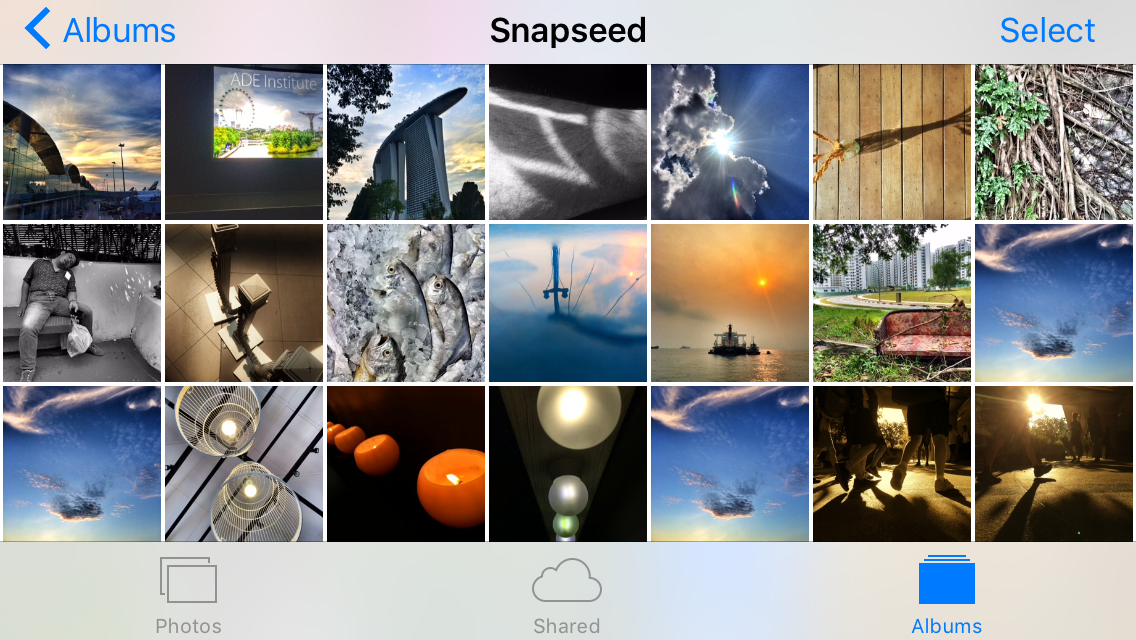
The Zen Art of Managing Smartphone Photos
We get a lot of questions about the best way to manage the photos on your phone.
Here are 3 ways to backup your photos from your camera roll that will save you time and energy.
| |
Calling Screen Time Digital Heroin is Digital Garbage
You may have seen an article calling screen time digital heroin.
This article take a critical look at that article and its claims and provides a rational viewpoint.
| |
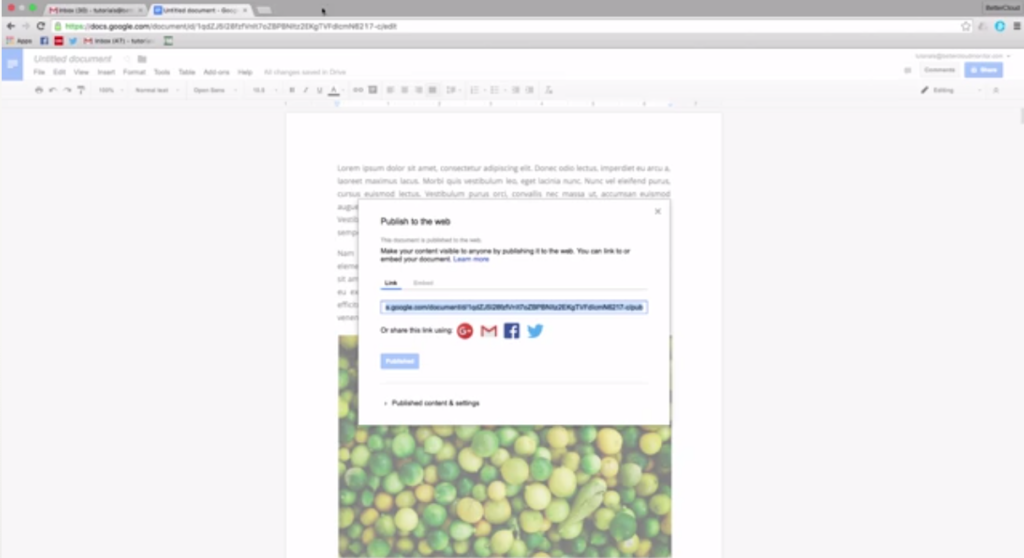
How to Extract an Image From Google Docs
There are a number of ways to do this including publishing the doc to the web, saving it as an HTML file and a google docs add on.
|
Labels:
Digital Bytes,
google docs,
Google Photos,
images,
iPad,
iphone,
photography,
photos,
screen time
Monday, 25 April 2016
Digital Bytes - April 25, 2016
Hot on the heels of a great ReThinking Literacy conference, we have a number of great ideas and resources to share. This week the focus is on Visual Literacy - one of the themes that was highlighted throughout the conference.
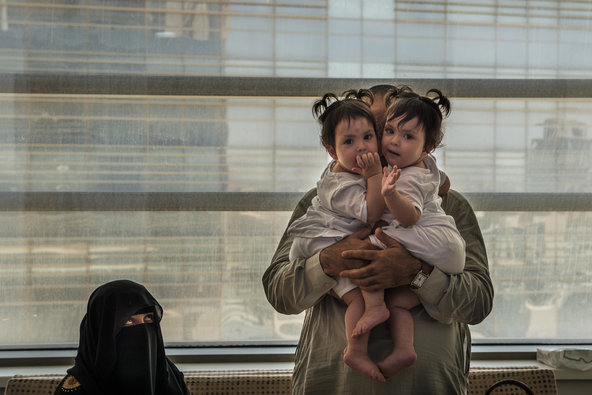
What’s Going on in this Picture?
The New York Times has a great segment in the Learning Network called, “What’s Going on in this Picture?”
Each week, a new image is posted as a discussion prompt, with accompanying questions. More information is revealed over the week, which leads to rich conversations.
| |
This is a fantastic site for inquirers. Every day a new question is answered with a rich
You can search through previous questions or ask your own questions.
| |
It’s Monday, What Are You Reading?
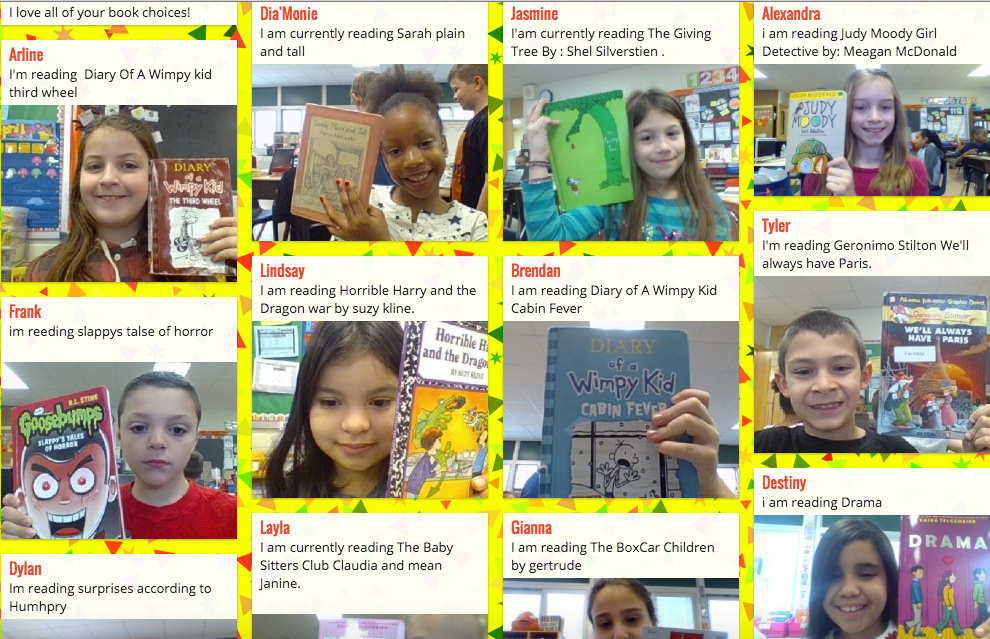
This is a great visual way to see what your students are reading. It is also a fantastic way for students to get book recommendations from others.
If you share your
|
Labels:
images,
inquiry,
photos,
reading,
reading workshop,
ReThinking Literacy,
video,
Videos,
Wonderopolis
Monday, 2 November 2015
Digital Bytes - November 2, 2015
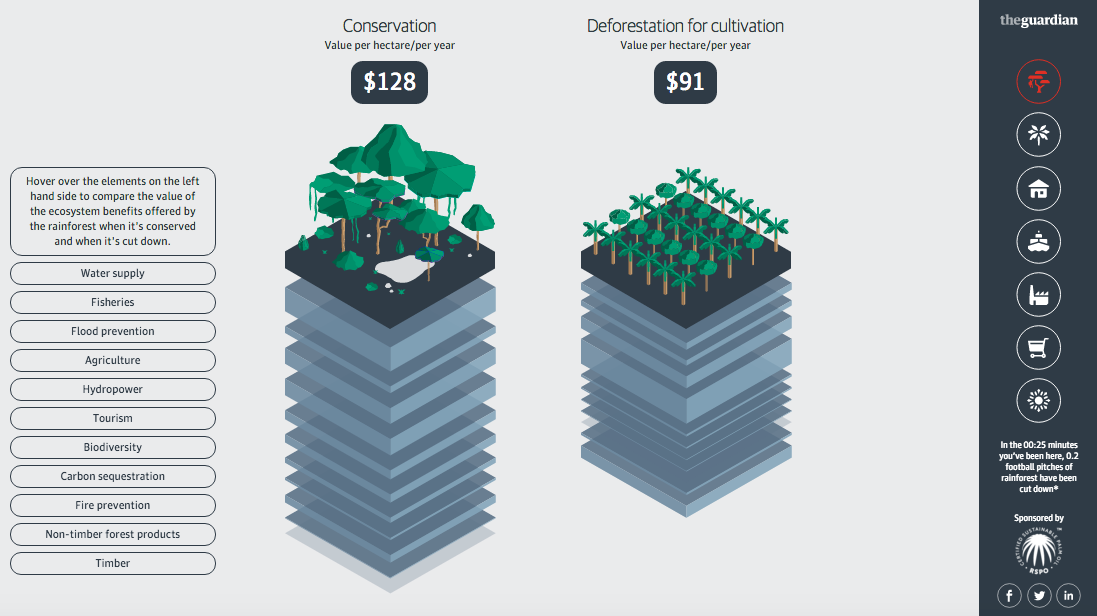
The haze we have experienced over the past few months in Singapore has brought the conversation of palm oil to the front of everyone's thoughts.
This website does an amazing job of exploring the use of palm oil and uses a variety of media such as videos, infographics, sounds, text, photos and interactive elements.
We can clearly see when a variety of media are mixed, students will engage with the information and learn quickly and easily. This is a fantastic mentor text for our students.
| |
Many of you may know that you can drag an image into Google and it will search the web for that image or images similar to it.
What you may not know if that there is so much more to Google's ability in this image search.
This short video does a fantastic job of showing some of those features and how you might use it in the classroom with your students.
| |
We all have students that need a little or a lot of help in our classes.
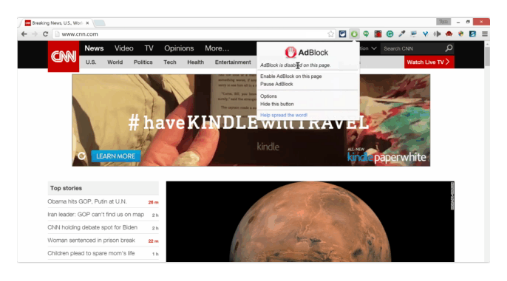
Here are 8 Chrome extensions to help those struggling students in your class. Everything from Ad Block and Readability to help students who have trouble focusing or get off task easily to Read and Write for Google which allows students to highlight text on
|
Labels:
chrome extensions,
Digital Bytes,
Google,
images,
learning needs,
palm oil,
websites
Tuesday, 16 June 2015
Designing Effective Presentations
Every educator today needs to learn how to present effectively. But how much do they know about what makes an effective presentation?
Garr Reynolds, author of the popular book Presentation Zen Design, notes:
Embedding the presentation here would not make sense. If you could understand the content of our presentation just by looking at the slides, then we would have failed in our job. There would be no point presenting if you could just read our slides! However, we did create some other resources which might be useful to share.
Handout
We wanted our audience engaged in our presentation. We didn't want them to feel they had to take copious notes as we spoke. We prepared this handout, because there were a few key things we wanted them to take away from the presentation, and we thought this 1-page handout could be posted at a desk to refer to when designing presentations later.
Finding Quality Images
Finding the right images to support the message you are sharing takes time - and is time well spent. This slide-doc takes you through how to find quality images. It is geared for teachers at our school, so bear that in mind as you look through.
Really understanding what your audience needs and is hoping to gain from your presentation is important. We had participants in our workshop consider the needs of their audience using this handout we adapted from Nancy Duarte's fantastic resource Resonate.
Additional Resources
Some of our favourite resources for presentation design can be found here:
Garr Reynolds, author of the popular book Presentation Zen Design, notes:
"For many of us, there is a hole in our education when it comes to visual communication... In the past, the tools for creating high-quality graphics and multimedia presentations belonged only to a select few. Today, those tools are in the hands of virtually anyone with a computer. However, possessing the hardware and software tools and knowing how to operate them does not a designer make." (p. 22, Presentation Zen Design).My colleague Dave and I are very passionate about Visual Literacy. We want to give educators the tools to develop their Visual Literacy skills, and presented recently to our fabulous Primary Leadership Team on Designing Effective Presentations.
Embedding the presentation here would not make sense. If you could understand the content of our presentation just by looking at the slides, then we would have failed in our job. There would be no point presenting if you could just read our slides! However, we did create some other resources which might be useful to share.
Handout
We wanted our audience engaged in our presentation. We didn't want them to feel they had to take copious notes as we spoke. We prepared this handout, because there were a few key things we wanted them to take away from the presentation, and we thought this 1-page handout could be posted at a desk to refer to when designing presentations later.
Finding Quality Images
Finding the right images to support the message you are sharing takes time - and is time well spent. This slide-doc takes you through how to find quality images. It is geared for teachers at our school, so bear that in mind as you look through.
Focus on the Audience
Really understanding what your audience needs and is hoping to gain from your presentation is important. We had participants in our workshop consider the needs of their audience using this handout we adapted from Nancy Duarte's fantastic resource Resonate.
Additional Resources
Some of our favourite resources for presentation design can be found here:
We hope you found these useful! Please let us know if you would like further information about designing effective presentations.
Labels:
creative commons,
design,
graphic design,
images,
keynote,
presentations,
tutorial,
visual literacy
Monday, 25 May 2015
Digital Bytes May 25, 2015
This week's Digital Bytes has the following articles: 21 Ways to use photography and images in your classroom, Top 6 sites for free videos, photos, and audio, and managing your computer's linked Google Drive folder.
Labels:
audio,
Digital Bytes,
Google Drive,
images,
photography,
video
Monday, 23 March 2015
Digital Bytes 23 March 2015
In this week's Digital Bytes, we introduce you to a great new site for finding Creative Commons licensed images with the attribution automatically included upon download - Photos For Class. There are also 3 new tutorials on our iBooks Author Vimeo album, where you can learn some fantastic new tricks. Finally, the iPad version of the successful Khan Academy website is packed full of features to explore, now more suited to include younger learners. Check 'em out!
Labels:
apps,
Digital Bytes,
ibooks author,
images,
iPad,
tutorial
Monday, 2 March 2015
Digital Bytes - 2nd March 2015
This week's Digital Bytes features information on finding global connections for your class, a look at the role of pictures in stimulating real-world problem solving with mathematics, and a tutorial on solving the annoying problem of 'suggested videos' appearing at the end of your embedded YouTube videos.
Labels:
collaboration,
global education,
images,
Math,
Mathematics,
Maths,
primary,
Videos,
youtube
Thursday, 28 August 2014
The Noun Project
| Thumbs Up designed by Nick Holroyd from the thenounproject.com |
The Noun Project. It is incredibly useful in the classroom, and is a delight to use.
You can search for anything on The Noun Project and find a graphical representation of it.
Designers upload their creations to the site, and people can download and use these icons as long as they attribute the designer. Attribution is made incredibly easy: all you do is click on the 'how to attribute' button, and it's all ready for you to copy-and-paste.
The really exciting thing for me, is the ability to change the colour of the icons using a simple Chrome Extension called
'The PNG Project'. Provided you know the hex code (I use the websafe colour palette in Pages or Keynote to find mine usually - though a google search of hex codes would lead you to some great sites), you can change the icons to match whichever colour scheme you like.
For details on how to use The Noun Project, please watch the tutorial below.
Labels:
colour,
design,
graphic design,
hex codes,
images,
keynote,
pages,
The Noun Project
Monday, 25 August 2014
How to Search for Creative Commons Licensed Images
One aspect of the UWCSEA Profile we can develop with our students is being principled by choosing Creative Commons Licensed images in our work. As mentioned in an earlier blog post, at UWCSEA (and many other leading schools), we believe that ethically, we have a responsibility to teach students (and teachers) about academic honesty and what Rodd Lucier terms "creative integrity."
To this end, we encourage our students to:
1. Create their own content first.
2. If this is not possible, we recommend searching for Creative Commons licensed content.
3. If they still can't find what they are looking for, the next step is to use a copyright image with permission from the original creator.
4. Only once they have exhausted the above steps, will we accept the use of copyright images, with attribution.
To this end, we encourage our students to:
1. Create their own content first.
2. If this is not possible, we recommend searching for Creative Commons licensed content.
3. If they still can't find what they are looking for, the next step is to use a copyright image with permission from the original creator.
4. Only once they have exhausted the above steps, will we accept the use of copyright images, with attribution.
For some, this can seem a daunting prospect. Where do I even go to find CC licensed content?
The following tutorial will help alleviate some of those concerns. It will explore the use of search.creativecommons.org as a starting point for finding images. It also shows how you can reference any CC Licensed Flickr image easily using Cogdog's Flickr CC image bookmarklet (simply drag the blue button to your bookmarks bar and click to attribute from Flickr).
For more information on Creative Commons, please read our blog post Creative Commons Explained.
Labels:
creative commons,
images,
screencast,
search,
tutorial
Friday, 16 November 2012
Creative Commons Explained
| cc licensed ( BY NC SD ) flickr photo shared by A. Diez Herrero |
Why is it that so many of us think this is ok?
Legally, educators could argue that their usage falls under 'fair use' terms of copyright in educational settings. At UWCSEA (and many other leading schools), we believe that ethically, we have a responsibility to teach students (and teachers!) about academic honesty and what Rodd Lucier terms "creative integrity."To this end, we encourage our students to:
1. create their own content first.
2. If this is not possible, we recommend searching for Creative Commons licensed content.
3. If they still can't find what they are looking for, the next step is to use a copyright image with permission from the original creator.
4. Only once they have exhausted the above steps, will we accept the use of copyright images, with attribution.
(For a PDF of the respecting creative work poster, please click here)
What is Creative Commons?
Creative Commons is a non-profit organisation that provides alternative licenses to Copyright. Creative Commons licences allow individuals to identify how they wish their content to be attributed, reused, remixed and/or shared.
Mission
"Creative Commons develops, supports, and stewards legal and technical infrastructure that maximizes digital creativity, sharing, and innovation."Vision
"Our vision is nothing less than realizing the full potential of the Internet — universal access to research and education, full participation in culture — to drive a new era of development, growth, and productivity."
licensed under a Creative Commons Attribution 3.0 License, http://creativecommons.org/about
What are the Creative Commons Licences?
Each of the four main Creative Commons licences are described below
(descriptions sourced from http://www.flickr.com/creativecommons).
Attribution
You let others copy, distribute, display, and perform your copyrighted work - and derivative works based upon it - but only if they give you credit.
Non-Commercial
You let others copy, distribute, display, and perform your work - and derivative works based upon it - but for noncommercial purposes only.
Share Alike
You let others copy, distribute, display, and perform only verbatim copies of your work, not derivative works based upon it.
No Derivatives
You allow others to distribute derivative works only under a license identical to the license that governs your work.
The licenses may be used in conjunction with each other, for example:
This licence means you are allowed to redistribute, both commercially and non-commercially, as long as it is passed along unchanged and in whole, with credit to you.
More information on the licenses can be found here. Details on how to license different types of content (multimedia and more) can be found here. The video below is a very clear explanation of the licences in action.
How and Where do I search for Creative Commons Licensed Content?
The most straightforward source for Creative Commons Licensed content is to use the Creative Commons search engine. This way, you can select whether you're looking for images, music or video.
![]() |
| http://search.creativecommons.org/ |
Searching for Images
![]() |
| http://www.flickr.com/search/advanced/ |
Compfight is another good site for creative commons images, with a very visual interface.![]() |
| www.compfight.com |
![]() |
| www.picol.org |
![]() |
| www.thenounproject.com |
Searching for Music
There are a number of great sites for finding creative commons music. Check out the ones below:
Searching for Video
Most video sites now have an option for users to upload their content under Creative Commons licenses. Searching through the Creative Commons Search site is still the best bet though.
Using YouTube editor you can select the CC tab to search within Creative Commons licensed content on YouTube. This is good for remixing videos.
![]() |
| http://www.jamendo.com/en/ |
![]() |
| http://dig.ccmixter.org/ |
| http://opsound.org/ |
| http://soundbible.com/ |
Most video sites now have an option for users to upload their content under Creative Commons licenses. Searching through the Creative Commons Search site is still the best bet though.
Using YouTube editor you can select the CC tab to search within Creative Commons licensed content on YouTube. This is good for remixing videos.
![]() |
| http://www.youtube.com/editor |
Vimeo allows you to search for creative commons licensed videos. Choose which license you would like to find content under, then click browse. From there, click the magnifying glass to search within results.
![]() |
| https://vimeo.com/creativecommons |
How do I reference Creative Commons Licensed Content?
There is a lot to remember in referencing Creative Commons licensed content (which I will outline below), but the good news is it is becoming easier and easier to do so.
You need to:
You need to:
- Include the title of the work
- Credit the creator of the work
- Provide the URL where the work is hosted
- Include the type of license, and a link to the license conditions*
*if relevant, any copyright notices need to remain intact too.
Many of these details can be easily sourced from the Creative Commons website, together with the location of the work in question.
Alan Levine created a fantastically helpful Google Chrome Extension called Flickr CC Attribution Helper that integrates with Flickr to generate attribution strings for Creative Commons licensed photos.
Installing Flickr CC Attribution Helper in Chrome from UWC South East Asia on Vimeo.
You just copy and paste either the html code (if you want it on a website), or the plain text (for presentations & other print media).
There are several guides which have more detailed information on referencing Creative Commons Licensed content. Click here and here for more information.
How do I License my own Content under a Creative Commons License?
There is a very handy License Chooser at http://creativecommons.org/choose/ which guides you through the process of selecting the right license for your needs.
You can then get text or html versions of the license to put on your work.
Why Creative Commons?
I believe in the value of sharing. In education, sharing is crucially important. By using Creative Commons content, and licensing our content as Creative Commons, we show our students that we are willing to assist others, share what we create, and acknowledge the input of others. Pretty important messages, in my opinion.
Subscribe to:
Posts (Atom)