Showing posts with label gmail. Show all posts

Thursday, 8 September 2016

A Beginner's Guide to Google Apps for Education

At a recent parent forum, we had requests for a workshop on Google Apps, so parents can understand what their child is doing at school and support them at home.

We focused on Google Docs, Google Drive and GMail. You can see a summary of what we spoke about in the presentation below.

We used the context of Favourite Restaurants in Singapore to show some of the features of docs. Check it out!


For more self-directed learning with Google Apps, try the Google Apps Learning Centre.


Friday, 6 May 2016

Leaving Well with Google - updated!

[Editor note: We have updated this very important post from our previous 2013 version! The information below is current as of 6 May 2016.]

This is always a difficult time of year as we say "see ya later" to colleagues, students and families who are leaving our school. To make the transition a little easier, here are some ideas on taking your Google items with you.

The first step to make the transition is to create a personal Google account for yourself. This will become the new home for all the things you'd like to transfer from your account at UWCSEA.

To take things with you, we will use Google Takeout, but first it's important to separate the things you want to leave behind from the things you want to take with you.

Google Drive

If you have any items you need to leave behind because they are needed by colleagues or friends, you'll need to make sure that your department account is added as an editor of the document. An easy way to do this is to create a new folder and add the department account as editor to the folder. Then, Add (hold down Option+drag) documents to this folder. They will automatically be editable by the department account.


For really important documents, you might consider transferring ownership over to the department account.

You'll also need to think about those files that you will want to take with you when you leave. One systematic way to do this is to create a separate folder in your My Drive where you collect these files (e.g. "Take Out" folder). As you go through documents in other parts of your Drive, add them to this "Take Out" folder -- be sure you add and not move by holding down the Option key when you drag to your new folder.

Cleaning your digital debris can be a daunting task, but it's necessary to make sure documents are left with those who depend on them, and that you have the documents you need when you depart.


Gmail

Just like with Drive, you should take this opportunity to sort through your email. If there are emails that people in your department or team need that they have not been cc'd on, please take some time to filter these and forward them to the relevant people.

Similar to how you organized your Drive, in GMail you can create a label for all the email you intend to take with you. When you go to use Google Takeout later, you can then choose if you want to bundle all of your email into that archive, or if you'd just like to take email with a particular label.


Sites

Before you leave, it's important to make sure that the Google Sites you've created for UWCSEA that need to remain behind -- e.g. event sites, curriculum pages, etc. -- have ownership changed to your department account. 

1. Go to the site you wish to transfer and click the Settings icon, then choose "Manage Site."
2. Click "Sharing and Permissions" and add the department account an "owner" of the site (you can have multiple owners of a site). Click "OK."


You may want to preserve some of the Google Sites you've created in the college and keep copies for yourself later. To do this, the steps are similar: 

1. Go to the site you wish to transfer and click the Settings icon, then choose "Manage Site."
2. Click on "Sharing and Permissions" and make your personal Google account an "owner" of the site.
3. Log in to your personal Google account and go to the address of the site you're transferring. Again, go to "Manage Site" and from the "General" section, press the "Copy this Site" button. 

This will make a copy of your UWCSEA site in your personal Google account space. 

WARNING: linked or embedded assets like YouTube videos, Google Drive content, or images may be broken and need to be re-linked, embedded or uploaded.


GMail, Blogger, Photos, YouTube, Google Drive, and more
Content from a variety of Google services can be transferred using Google Takeout. This utility allows you to select what services you'd like to take data from and bundles them into open and portable formats that you can then transfer to your personal Google account. 

For example, Takeout lets you download the original video from things you've uploaded to YouTube.
Takeout allows you to specify folders you'd like to export from your Google Drive (you don't have to take the whole thing). Note that you cannot export folders and documents from Drive where you are not the owner.

Once you've selected all the services and specific data, you can click "Next" and Google will tell you it is preparing your archive and will email you when it is ready. It might take a few hours or a few days, depending on how much data you have, but eventually you will get a .zip folder with all of the files.  Double click the downloaded .zip folder to uncompress them. Using Google Chrome, log into your personal Google account and upload the entire folder to your new account.


If you want more detail about this archive, or have questions about how to use Google Takeout, see this useful site from Google's Data Liberation Front.

We're sad to see you go, but wish you all the best. Hopefully this will make it a little easier to enjoy your last few moments here and not worry so much about your Google goodies.

Monday, 15 February 2016

Digital Bytes - 15th February, 2016


9 Great Tips for Safari on Your iPad

Whether it is your own iPad or the iPads that your students are using, everyone can find some useful tips in this article for using Safari. Some of my favourites are being able to find words on a page easily, quickly viewing recent pages and requesting the desktop site.


Why Self Publishing May be the Best Writing Lesson Ever

This is the story of a teacher named Brian South who started on the path of self-publishing for his own novel. His students helped with comments and suggestions and he has taken what he learned from that experience into the classroom with his students.


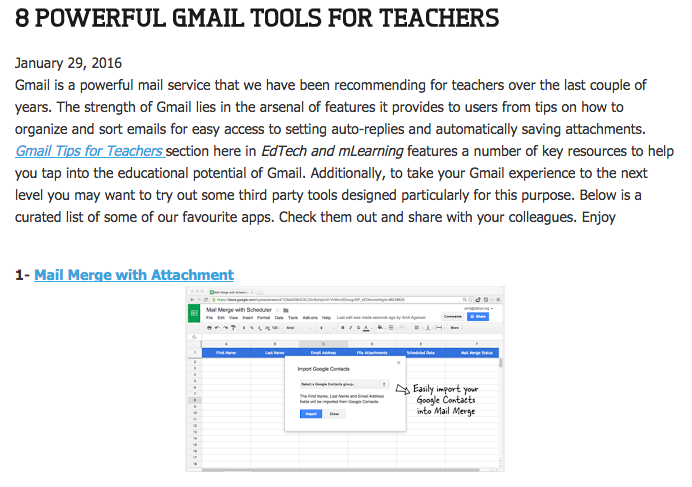
8 Powerful Gmail Tools for Teachers

Gmail is one of the tools that we all use every single day. Why not make your life easier by taking a look at some of these tools for teachers?

Wednesday, 3 December 2014

Learning to Manage Distractions

One of parents' biggest concerns around student use of technology is that of distractions. The same tool we use to create and learn, can be used to entertain and derail productivity.

So what are our options, as teachers? As parents?

We could create elaborate structures of control (blocking certain websites, turning off wifi etc), but that is only a temporary solution.

At UWCSEA, we prefer to educate students about distractions, with a view to creating informed citizens, who learn to manage their tendencies to get distracted. This is of course what all adults need to learn to do themselves...

This skill of self-management takes time to develop, and students need lots of opportunities to practice. They may well need frequent reminders throughout their schooling of techniques and approaches to reducing distractions, and this is where responsive teaching comes to the fore.

One of the ways we have begun to educate students about distractions is through the Personal and Social Education curriculum. Recently, I co-taught with a Grade 3 teacher, who was concerned her students were getting side-tracked with Google Chat, and who wanted some strategies for helping students remain focused during class.

When I walked around the room, I asked if I could borrow a few students' computers to show the class. Here's what we found:

Personalisation
Like adults, students in our Grade 3 class loved personalising their computers. The majority had chosen a desktop background of something they were interested in (Minecraft, soccer players, horses etc) and many had changed their Gmail backgrounds to have snow falling or animated gifs moving in the background at all times.

Just because you can, doesn't mean you should.
Movement and colour can attract attention, often away from what we should be focusing on. Think about visiting a news website, for example. Advertisements often contain moving elements, as these attract the eye - a deliberate attempt by the advertiser to get you to notice what they are selling.

If we choose to have moving elements on our Gmail backgrounds, or our desktop wallpaper (one of the options on a Mac is to have a new desktop background picture every 5 seconds), then we are making it much harder for us to concentrate on our school work.


Colours that help promote calm and thinking are greens and blues, so they were recommended to the students as colours they might like to choose for their desktop and Gmail backgrounds. We encourage personalisation, but we want to make students aware that their choices have an impact on their learning. Students went back to their computers and made changes they were comfortable with.

Chat
The ability to send and receive instant messages is a relatively new phenomenon for our Grade 3 students. Understandably, it's an exciting feature to explore. Many students have older brothers or sisters who like seeing their younger sibling online, and take the opportunity to check in. This puts the younger student in a bit of a conundrum - do I reply to my sibling, or stay focused on my school work?

In one of those serendipitous twists of fate, this exact scenario occurred while I was in the room, providing us with a perfect teachable moment.

We plugged in the computer of a student whose sibling had sent a G-Chat message, and asked the students what they could do in this sort of situation. There were lots of animated discussions in groups about this scenario, and we collected some of the responses and evaluated them as a class.

"We could turn our G-Chat to invisible, so noone knows we are online."
"So can people still send you messages when you're invisible?" we asked.
"Yes, they could."
"Have a think about how that might that affect your learning," we suggested.

"We could turn our G-Chat to busy, so people know we're working."
"So can people still send you messages when you're busy?" we asked.
"Yes, they could."
"Have a think about how that might that affect your learning," we suggested.

"We could sign out of G-Chat when we're at school."
"So can people still send you messages when you're signed out?" we asked.
"No, they couldn't."
"Have a think about how that might that affect your learning," we suggested.

We then sent students back to their desks to make a decision that would help them remain focused on their learning following the discussion with the class.

Documenting Thinking
The final piece of the puzzle was to document their thinking about distractions, and the changes they decided on for their laptops using a Quicktime Screen Recording, which we embedded in their Google Site (see below for details)


Friday, 7 March 2014

Email, Spam, YouTube Subscriptions and Snopes

One of the many wonderful things about having Google Apps at our school is that our students are able to have GMail accounts. This really does enable them to have the functionality we adults enjoy with having an email, with the added bonus of learning to use it in a supportive school environment. It allows teachers to play a role in helping guide them in appropriate use.

In Grade 5, some students expressed their frustration at the many emails they were being sent by YouTube to their school accounts. Some were puzzled as to how this happened in the first place, so we set about addressing the issue.

While logged in to their school GMail account, some students had (deliberately or inadvertently) subscribed to some YouTube channels. This most likely happened at home, where other family members share the same computer. Daily notifications were coming to their Inbox, alerting them to new content.

The quickest way to solve this problem was to show students where they can manage their subscriptions, and remove subscriptions that they weren't interested in, or might distract from their learning.

We explored how to unsubscribe from other emails too, e.g. marketing or other spam emails, using the unsubscribe link at the bottom of such emails. Other options include reporting the email as spam (the exclamation point in the circle above the email), or creating a filter to delete unwanted emails.

The subject of chain-mail or stories that employ scare tactics to get users to forward the email on to others, was another topic of discussion.

Frequently, students recognise that an email might be chain-mail and untrue, although they forward it on just in case, thus perpetuating the problem. Snopes.com is a great website to check the validity of emails they receive. Simply type the keywords into the search box, and you will find out whether it is true or false, when it originated and how it has been spreading.

Our aim is that students learn the skills to effectively manage their school email accounts, which will help them manage any other email accounts they may have.

Tuesday, 13 March 2012

"Oops! I pressed send."


I recently came across a couple simple add-ons to Gmail that are easy to put on and really handy when you need them.

Undo Send:
Remember the last time you had “one of those days”? Remember how on that day you ended up sending an email reply-all by mistake, or sent a copied email without changing the name? If you realized right after pressing send, there’s a simple solution. Undo Send, which you can find in Google Labs.


Click on the little wheel at the top right in your Gmail, then click on Labs.


Search for Undo Send, click enable and save. While you’re at it, scout around for other labs you may find helpful.


From now on, you’ll get this message for 30 seconds after you send an email. Simply click undo to take your message back…

Boomerang:

Delay send. Ever have an email you wanted to wait to send? Maybe it’s Friday afternoon and you don’t want it to get lost in the shuffle of the weekend. In the past I saved to drafts, set a reminder and hoped follow through. 

Once you download the free program, you see a boomerang next to send. 


You write your email, chose when to send later and don’t even have to be online for the message to be sent. Simple.